
TABLE OF CONTENTS
• Chrome
• Safari
• Firefox
Chrome
• Press F12 on your keyboard or open the Chrome menu and navigate to More tools > Developer tools
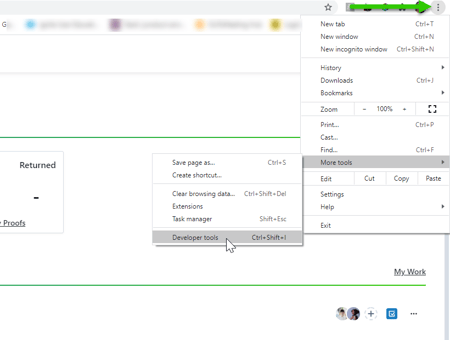
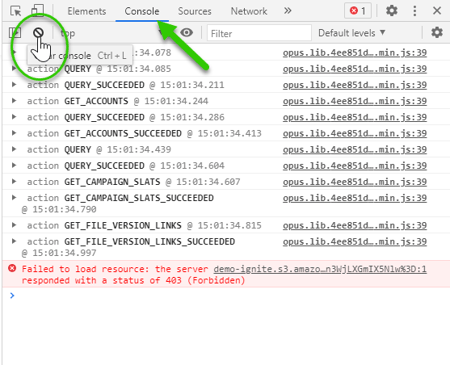
• Select Console
• Select the circle with the slash to clear console
• Recreate the issue within Lytho
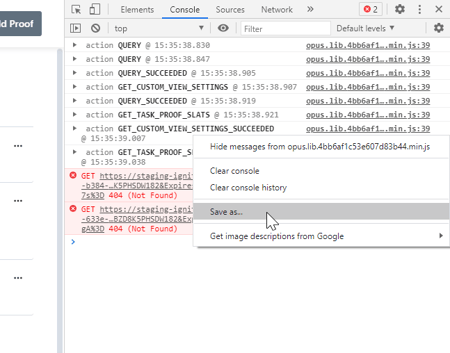
• Right-click in the console area and select Save As to save the log
• Select Network
• Check on Preserve log and Disable cache
• Redo the steps you need to reproduce the bug you’re encountering
• Click the Export HAR (sanitized) button to save the log

• Send both of these saved files to our Support Team!
Safari
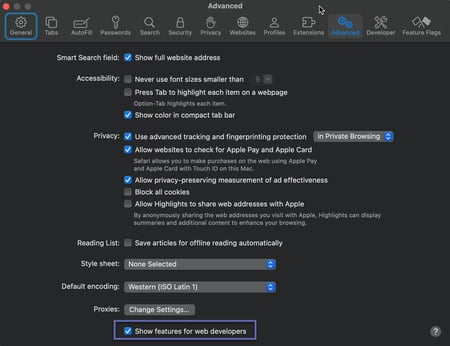
• Open Safari Menu and navigate to Preferences > Advanced tab. Toggle the checkbox for Show features for web developers
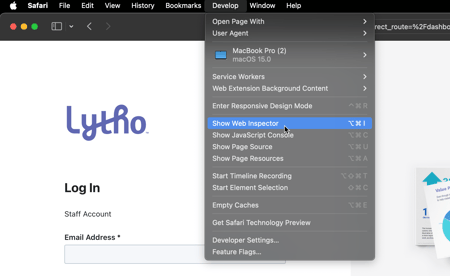
• Open Develop menu and select Show Web Inspector
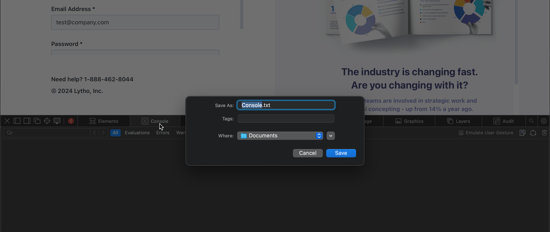
• Click Console tab and then recreate the issue within Lytho
• Left click in the Web Inspector panel and CTRL+S to save log
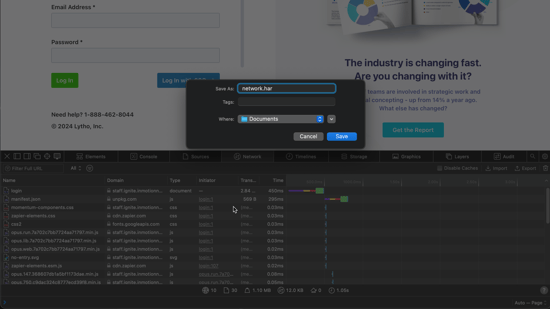
• Click Network tab and recreate the issue within Lytho
• Check on "Preserve log"
• Left click in the Web Inspector panel and CTRL+S to save log
• Send both of these saved files to our Support Team!
Firefox
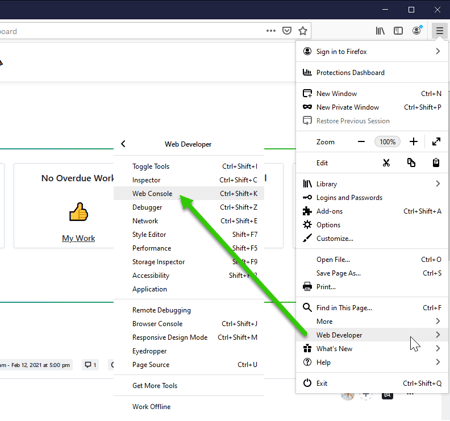
• Open the Firefox menu and navigate to Web Developer > Web Console
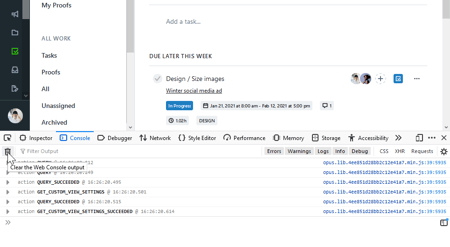
• Select the trash icon to clear the console then recreate the issue within Lytho
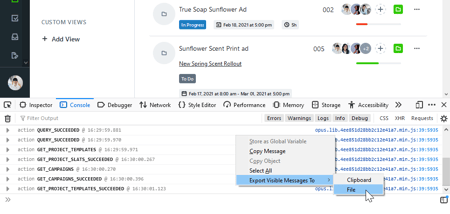
• Right click in the console and select Export Visible Messages To > File to save the log
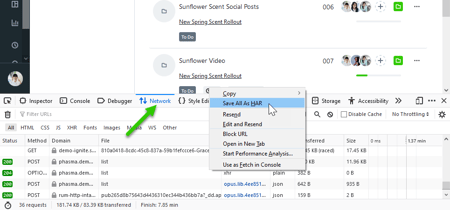
• Select Network, check on "Preserve log", then right click and select Save All As HAR to save the log
• Send both of these saved files to our Support Team!