Lytho Workflow bases your shown date format on your browser's set language. For example, English (United States) will use MM/DD/YYYY while English (United Kingdom) will use DD/MM/YYYY.
TABLE OF CONTENTS
• Chrome
• Firefox
• Safari
Chrome
Google Support Link - https://support.google.com/chrome/answer/173424
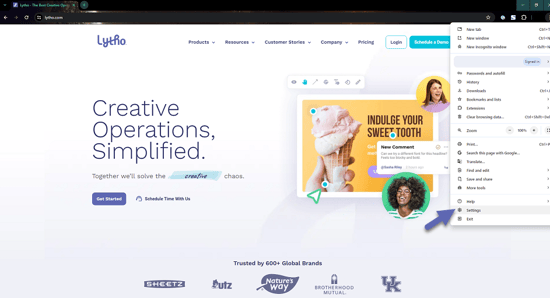
You can change the language in Google Chrome by clicking on the Options (...) button in the top right hand corner and selecting Settings.
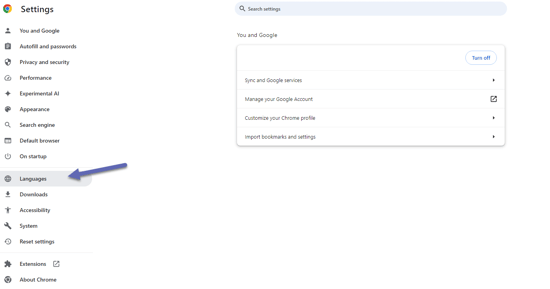
From the Settings page, select Languages from the left navigation menu.
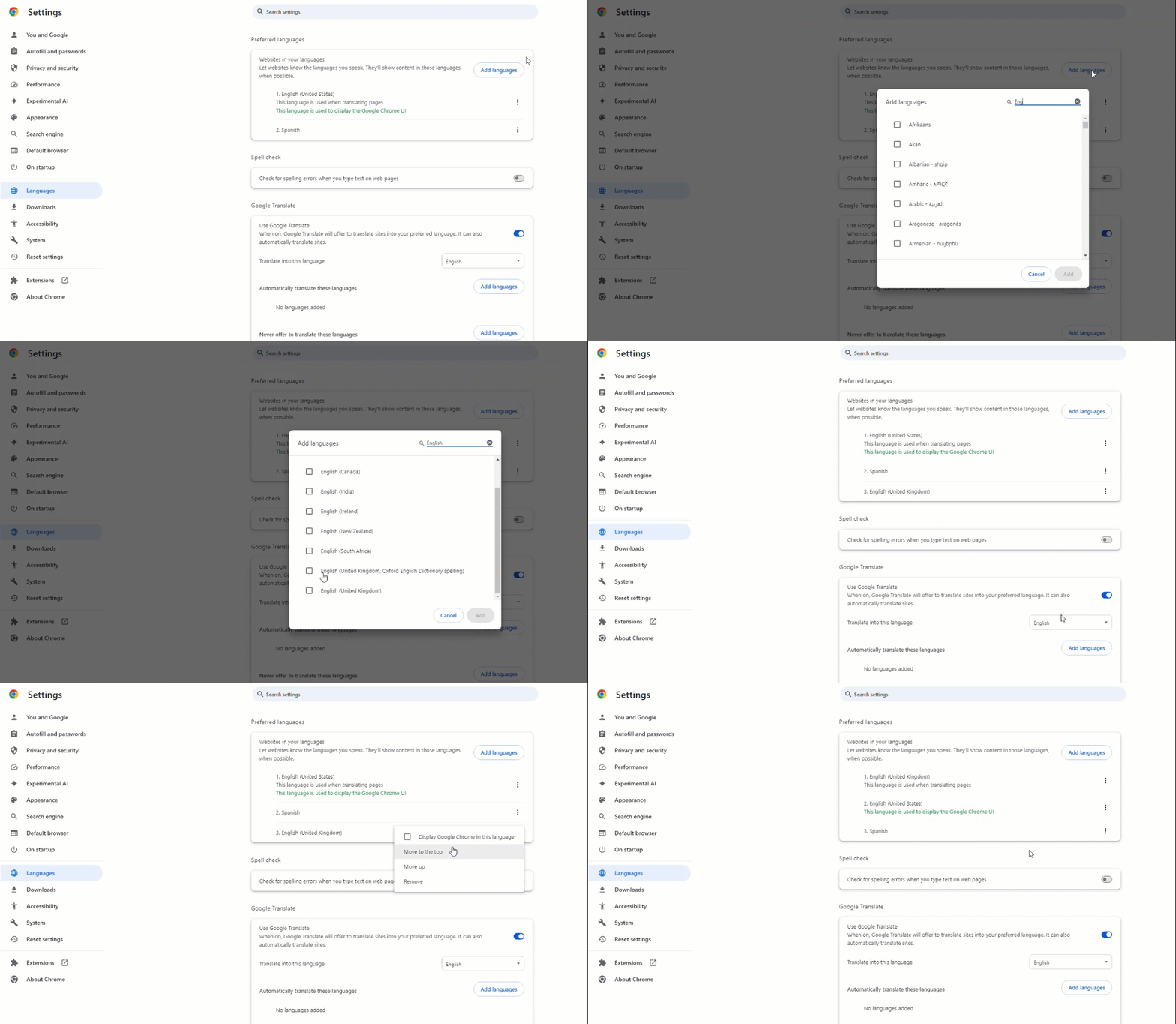
Under the "Preferred Languages" tab, select Add Languages. Search for and select the language(s) you need and click Add at the bottom of the list. To list a language as your default language, click on the Options (...) menu and select "Move to the Top".
Firefox
Mozilla Support Link - https://support.mozilla.org/en-US/kb/use-firefox-another-language
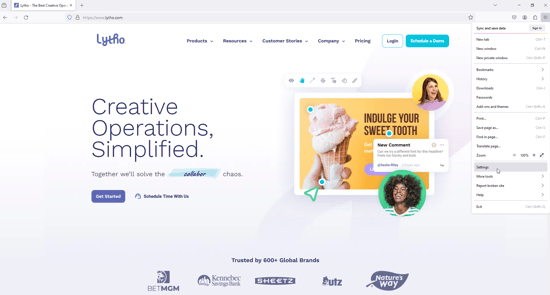
You can change the language in Mozilla Firefox by clicking on the Open Applications Menu (Sandwich Menu) button in the top right hand corner and selecting Settings.
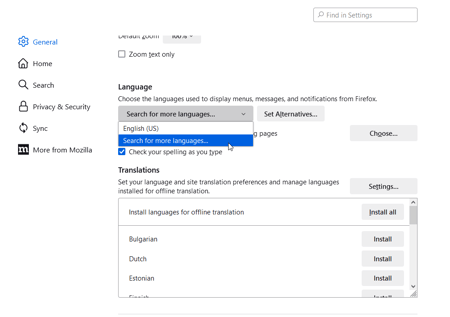
Scroll down to the Language section, select the dropdown with your current language and click on the Search for more languages... option.
At the bottom of the menu, select Select a language to add... and select Add on the right hand menu. Repeat this process to add multiple languages.
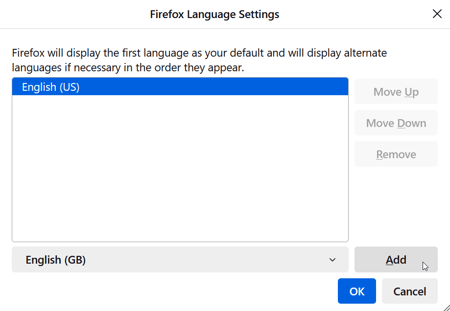
Per the text in the menu, the first language in the list will be your default language. Click OK to finish.
Safari
Apple Support Link - https://support.apple.com/guide/mac-help/change-the-system-language-mh26684/mac
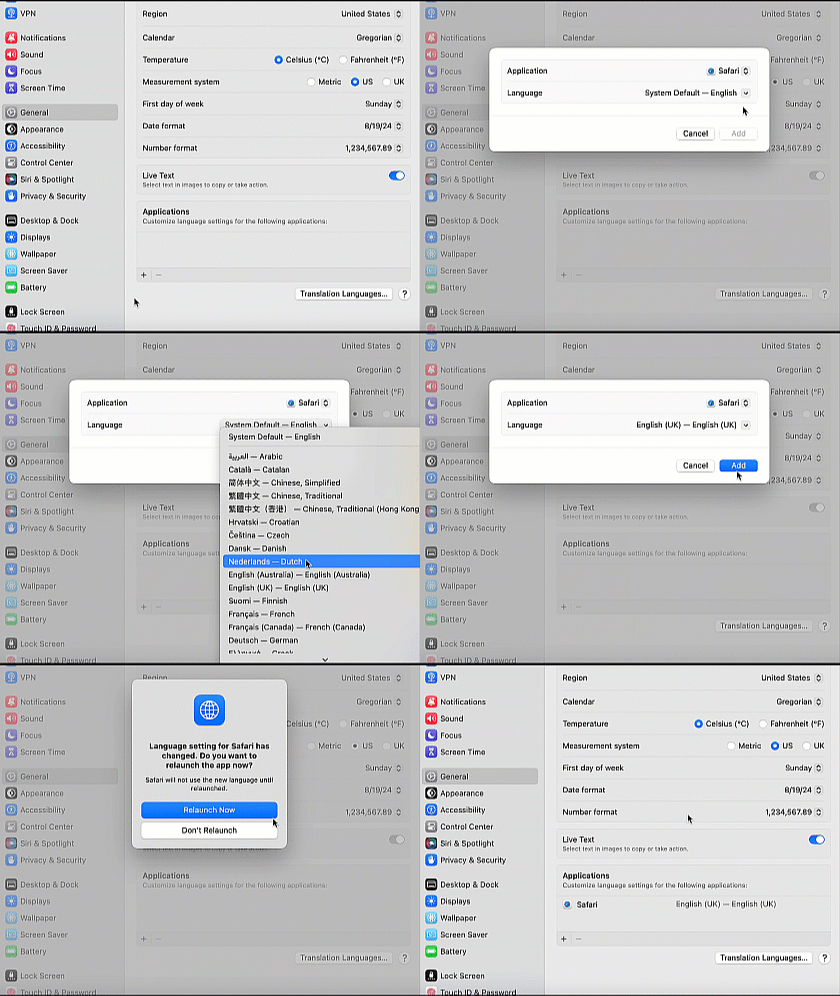
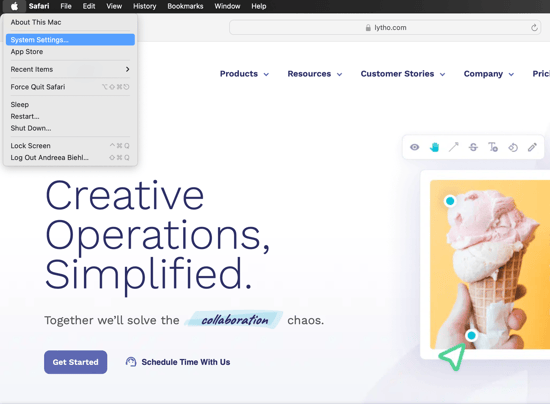
You can change the language in Apple Safari by clicking on the Open Applications Menu (Sandwich Menu) button in the top right hand corner and selecting System Settings.
In the menu, select General from the left menu and then select Languages & Region from the right menu.
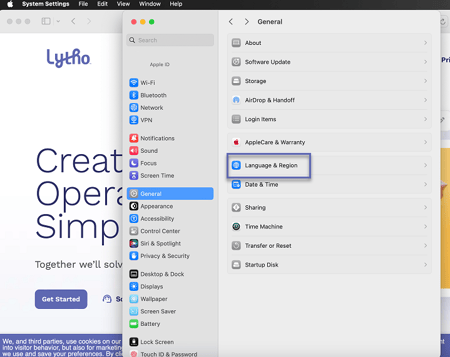
From the bottom of the Languages panel, under "Applications" select the + symbol. With "Safari" as the chosen application, click on the Language dropdown and choose your language. Select Add to continue and then select Relaunch Now to restart your browser with the new default language.