Features described in this article are not included in all subscription plans. Interested in expanding your feature set? Contact the Lytho Support Team for further assistance.
TABLE OF CONTENTS
• Time Required for Completion
Time Tracking
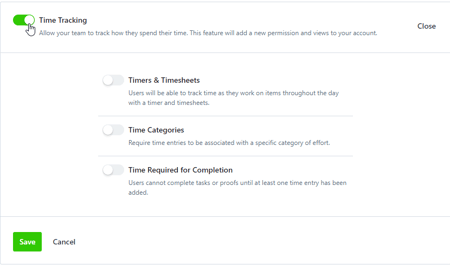
To enable your team to easily track time on tasks and proofs, including additional notes and custom time categories, navigate to the the Features sub-navigation in Account Settings.
To enable or disable, click the toggle to the left of the Time Tracking feature.
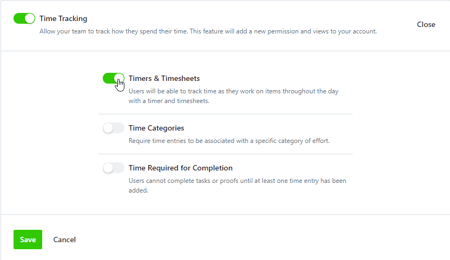
Timers & Timesheets
Timers provides an easy and convenient way for your team to accurately track time by starting and pausing timers as they work on tasks and proofs throughout the day. Timesheets provides users with a view to easily see time tracked broken down per project, task, and even category on a day-by-day basis. Enable this feature by toggling on Timers & Timesheets. If not enabled, team members will still be able to create individual time entries against tasks and proofs.
Time Categories
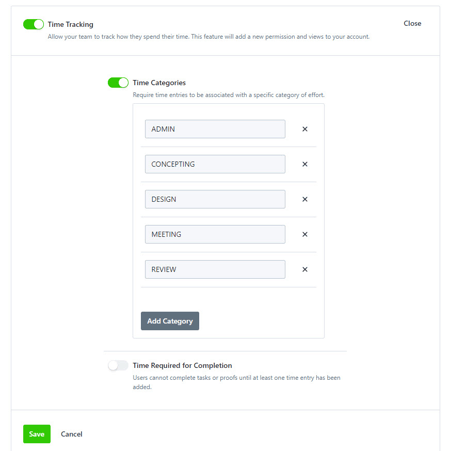
Time Categories requires each time entry to be associated with a specific category of work. The system will provide four default categories that you can edit or remove. Users will have the option to select a specific default time category to their time entries in their Personal Settings.
Click on an individual category title to edit the text and click away to save.
Click on the X to the right of a category title to remove it from your account.
You can also add additional categories as needed. Click Add Category, near the bottom of the screen, to create an additional time category.
Provide a name for the category and click Create Time Category.
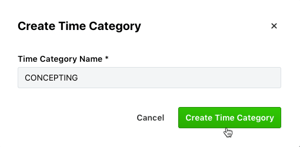
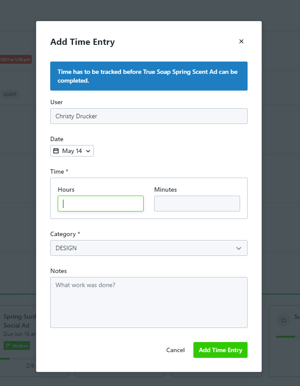
Now, when a user attempts to add a time entry, these categories will show as available options in the required Category field from the Add Time modal. The default time category will be automatically selected for all new time entries, but can be changed in the Add Time modal.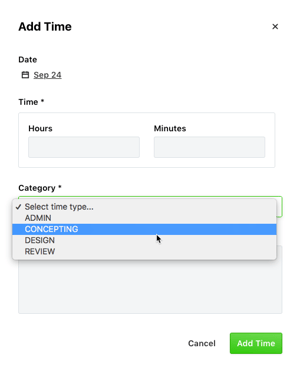
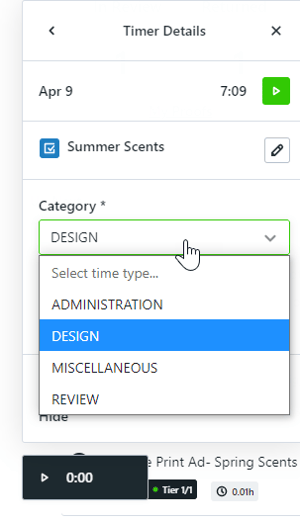
If you have Timers & Timesheets enabled, the default time category will be selected in all newly created timers, but can be changed in the Timers Details.
Time Required for Completion
If you would like to require all users to enter time before they can complete work, enable Time Required for Completion.
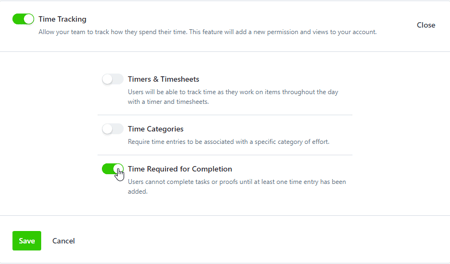
Users will be prompted to add their time entry when completing work items with no tracked time.