
Skip to content
English - United States
  • There are no suggestions because the search field is empty.

Getting Started with the Workflow API

Lytho's API enables developers to build applications with access to Lytho Workflow. This enables users to fully integrate Lytho in their workflow and processes. 


Features described in this article are not included in all subscription plans. Interested in expanding your feature set? Contact the Lytho Support Team for further assistance.


TABLE OF CONTENTS

• Client ID & Client Secret

• Technical Documentation

• Use Cases Examples

• Error Handling 


Client ID Client Secret

To access the Lytho API, you'll need to generate an access token using a Client ID and Client Secret. These can be generated within Lytho Workflow by navigating to Account Settings > Open API


The Client Secret will only be displayed once after generation. Be sure to store it somewhere safe.
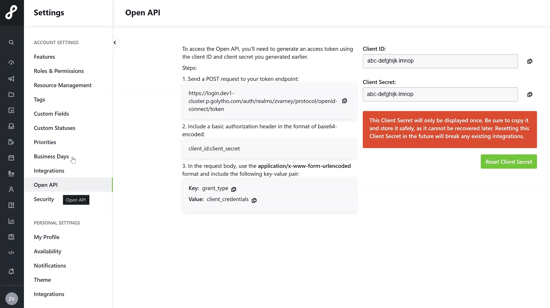
API panel


If you misplace your Client Secret, a new one can be generated by selecting Reset Client Secret. Resetting the Client Secret will break any existing integrations that have been established. 
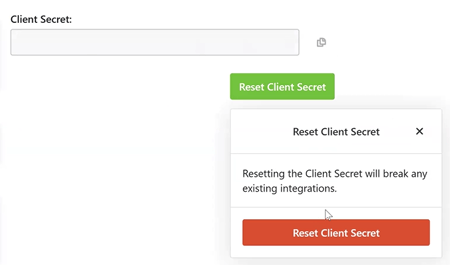
Reset client secret button


Technical Documentation

You can find the technical documentation for Lytho Workflow's API here.


Use Cases Examples

Project & Work Management (Jira, Asana, Monday.com, Smartsheet)
Automatically create projects, synchronize tasks, update statuses, assign owners, and keep creative work aligned across systems.

CRM & Marketing Automation (Salesforce, HubSpot, Marketo)
Trigger creative requests from campaigns or opportunities, synchronize project status back to your CRM, and connect marketing operations with creative workflows.

Digital Asset Management & File Storage (Lytho DAM, Google Drive, Box, Dropbox, OneDrive)
Attach files to projects, synchronize deliverables, upload approved assets automatically, and connect creative work with centralized file storage.

Communications & Collaboration (Slack, Microsoft Teams)
Notify teams when projects change status, approvals are needed, deadlines approach, or work is completed to keep everyone informed without leaving their collaboration platform.

Calendars & Scheduling (Google Calendar, Outlook Calendar)
Synchronize project milestones, review meetings, launch dates, and deadlines with personal or shared calendars.

Business Operations & ERP (NetSuite, Workday, SAP)
Connect creative operations with financial or operational systems by synchronizing project data, departments, resources, or cost centers.

Customer Support & Service Management (Zendesk, ServiceNow, Freshservice)
Automatically create creative work from customer requests or internal service tickets while maintaining visibility throughout the fulfillment process.

Business Intelligence & Reporting (Power BI, Tableau, Domo)
Export workflow data for reporting, resource planning, throughput analysis, approval metrics, and executive dashboards.

Custom Business Applications (Internal portals, proprietary systems, custom applications)
Build custom integrations that automate business processes, synchronize data, or extend Lytho Workflow within your organization's technology ecosystem.


Error Handling

The Lytho API uses HTTP status codes to reflect a successful or unsuccessful request. 2XX status codes are successful requests 4XX/5XX status codes represent an error took place. If you receive an error status code, check the body for an error code and message.

Status code
Description
Most likely cause
2XX
Successful request
 
400
Bad request
Invalid / missing data
401
Unauthorized
Invalid / missing API key
403
Forbidden
Performing an action that's not permitted
404
Not found

The resource doesn’t exist / wrong

endpoint 

409
Conflict

Trying to overwrite a resource that

already exists

429
Too many requests
Hit an API rate limit
500
Internal server error
An error occurred on Lytho side