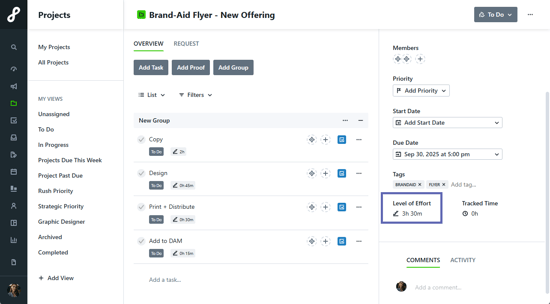
Level of Effort (LOE) helps teams estimate, allocate, and visualize time commitments across Tasks, Proofs, Projects, and Campaigns. This enables smarter planning, balanced workloads, and improved performance tracking.
TABLE OF CONTENTS
• Project and Campaign Level of Effort
Adding Level of Effort
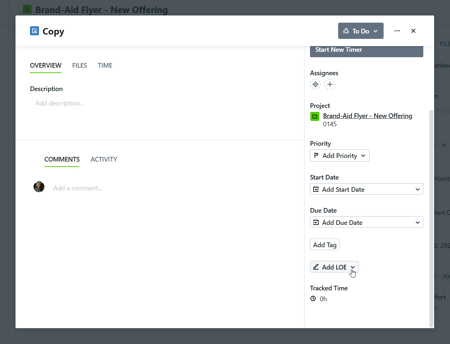
Select a Work item and click Add LOE to begin adding Level of Effort.
Input the number of hours and/or minutes below LEVEL OF EFFORT.
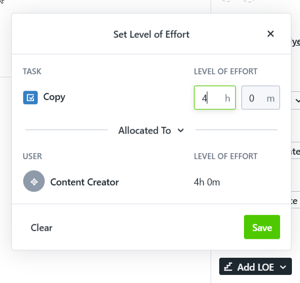
When setting Level of Effort (LOE) and multiple team members are assigned to the Work item, you can redistribute how time is split between Assignees:
Allocated To: Evenly split the total LOE across all assignees. This option is best for evenly shared or simple Work.
• Example: LOE totals 15 hours and each of the 3 Assignees is given 5 hours.
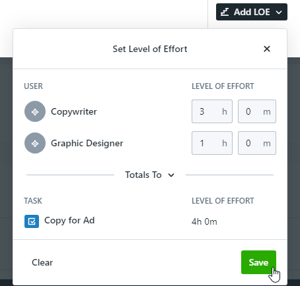
Totals To: Manually assign hours to each person. This option is best for Work with uneven workloads.
• Example: LOE totals 10 hours and the designer is allocated 8 hours while the copywriter is allocated 2.
Choose your option by clicking Allocated To and selecting from the dropdown.
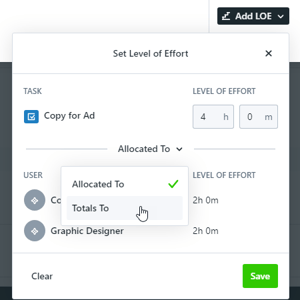
When switching to Totals To, input the number of hours and/or minutes for each Assignee below LEVEL OF EFFORT. These numbers will automatically update the overall Level of Effort. Select Save when complete.