Works with: Lytho DAM
The Drupal Plugin for Lytho DAM allows for seamless integration between Lytho assets and Drupal's content management system. Once the plugin is installed, you'll be able to pull assets from Lytho directly into Drupal for content creation.
TABLE OF CONTENTS
• How to Install the Lytho DAM Drupal Plugin
How to Install the Lytho DAM Drupal Plugin
Prerequisite
Please reach out to Lytho Support for the latest version of the Drupal plugin. The module is available for Drupal version 9.
Module “RestUI” needs to be installed. This can be downloaded from https://www.drupal.org/project/restui
Step 1
Before we can use the plugin, it needs to be clear to Lytho what the URL of the Drupal application using it will be. This URL need to be requested from Drupal and delivered to the Lytho Support team. After Support has received your Drupal URL, Lytho will whitelist the URL in our Identity Provider for security reasons.
A valid redirect URI and correct web origins need to be filled in for the Drupal-client in tenant IDP configuration (a Lytho Support engineer can do this for you).
Step 2: Installation
Unzip the package and place the contents within the folder web/module/lytho of your Drupal installation.
Install modules REST UI and Lytho in the Drupal admin interface.
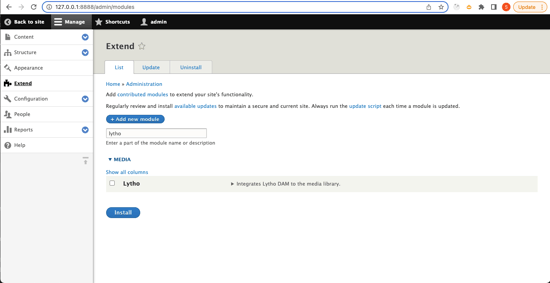
During this installing the following media types are generated: "Lytho document" and "Lytho image"
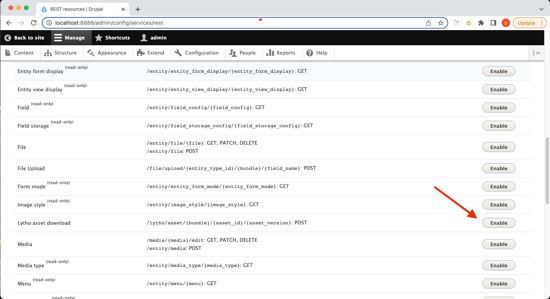
Step 3: Setup Rest resources
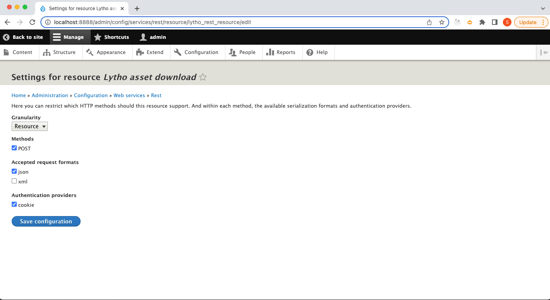
The REST resources must be enabled to enable Lytho DAM to connect to the Drupal installation.
Step 4: Configuration
This step is optional and depending on preference.
Add a media reference filed to any content type in Drupal. This is where you can select Lytho as a reference type to be used by the media selector.
Using the Plugin
Once your Lytho and Drupal accounts have been connected, you'll be able to pull assets from Lytho directly into Drupal for use in your content creation. To begin this process, from the black navigational bar at the top of the screen, select Manage followed by Content.
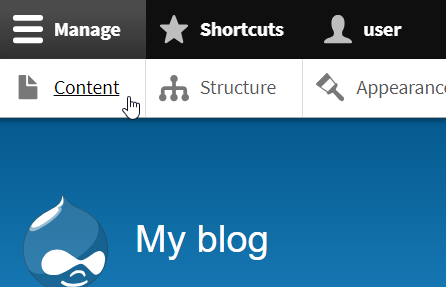
Using Lytho assets in your content
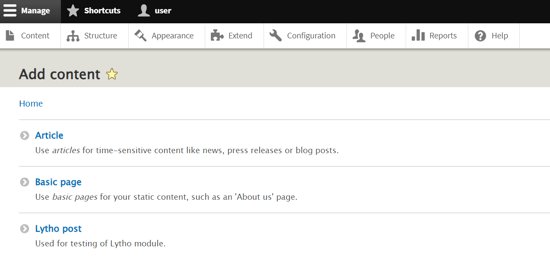
Start by clicking the blue +Add Content button. This will introduce the available content types you're able to create.
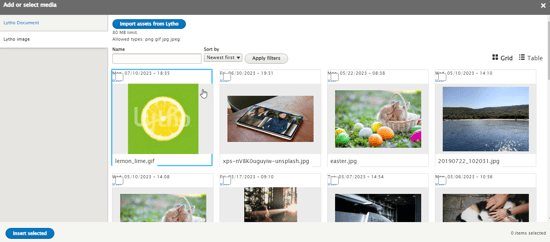
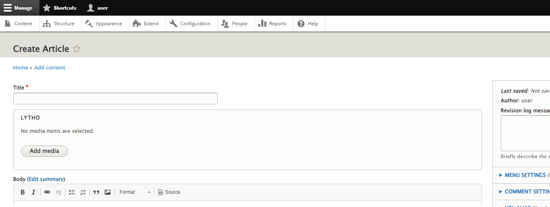
Once you have selected your content type, find the Lytho box and select Add media to choose from assets previously uploaded to Drupal or pull new assets in from your Lytho DAM.
On the left navigation bar, select from either Lytho Document or Lytho image and use the Import assets from Lytho button to bring in assets from the DAM.
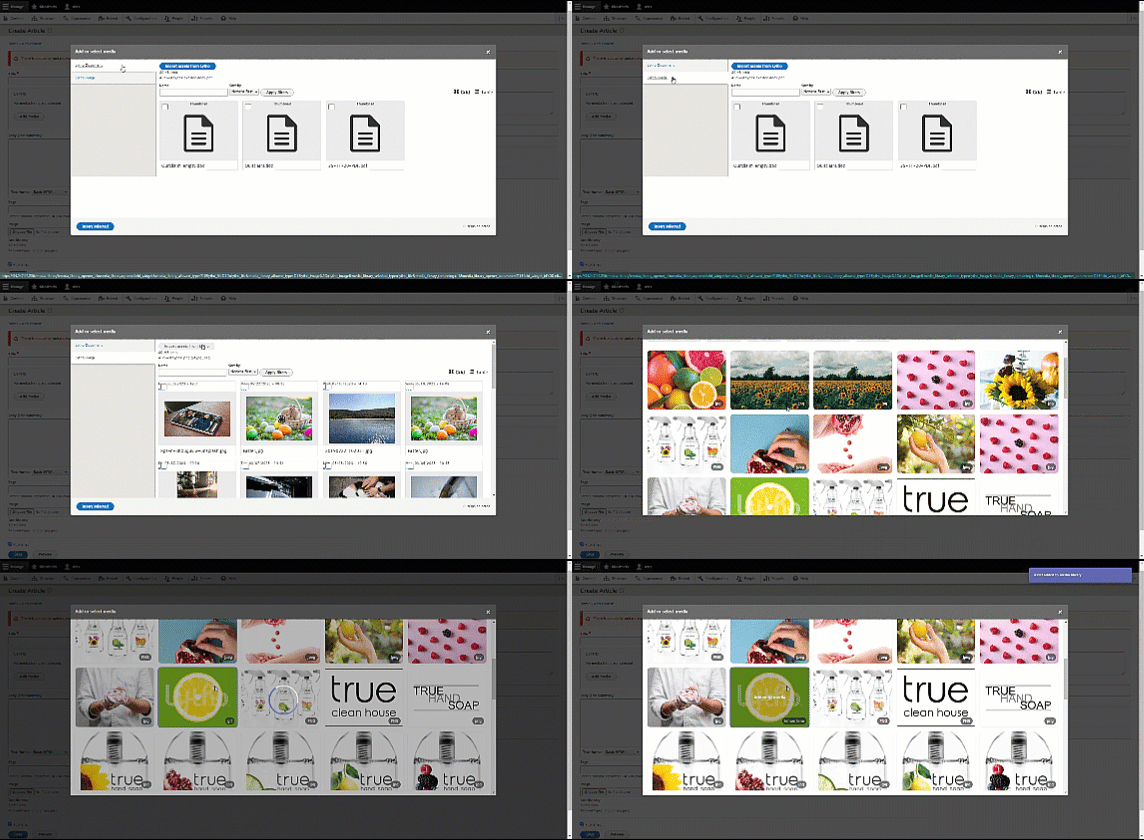
Once you have imported your asset, it will remain as part of the Drupal asset list for future use.