Provide users with options to choose from in Create & Publish by creating Dropdown fields to populate pre-approved copy, taglines, and other custom text. Maximize flexibility while keeping your Publications on brand and typo free!
Features described in this article are not included in all subscription plans. Interested in expanding your feature set? Contact the Lytho Support Team for further assistance.
TABLE OF CONTENTS
• Editing and Deleting Dropdowns
Creating Dropdown Fields
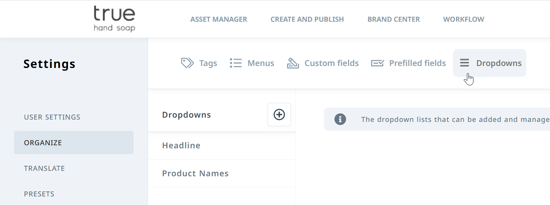
Navigate to the ORGANIZE section of your Settings and select Dropdowns
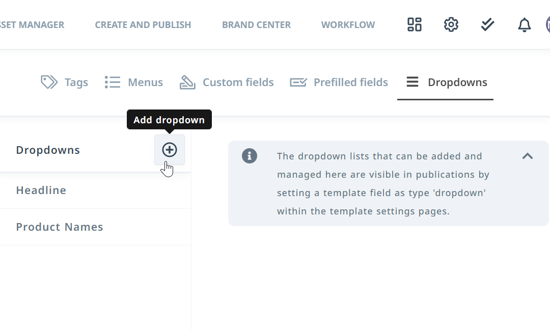
Click the plus icon to the right of Dropdowns to add a new dropdown field.
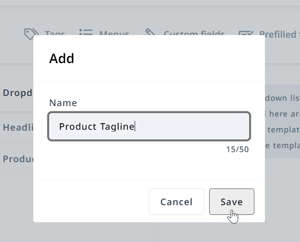
Choose a name for your field that will be easily recognizable when assigning the dropdown to a text field in templates. Click Save to continue.
Select your newly created dropdown from the Dropdowns list to reveal the options. Click the plus icon to the right of your screen to add an option.
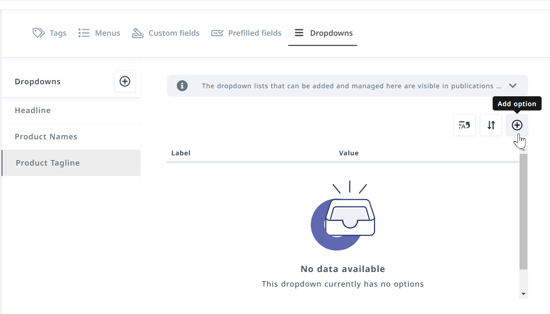
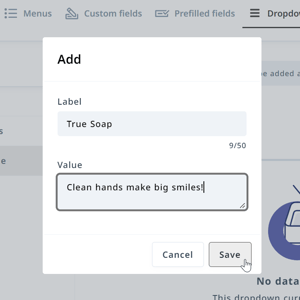
Create a label for your option and add the value. Click Save when complete.
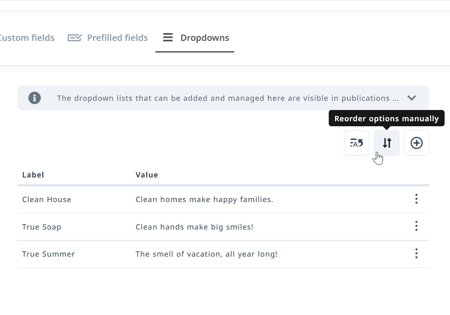
Click the plus icon to continue adding options. Once you've added your options you can click the alphabet icon to reorder alphabetically A-Z or the arrows icon to reorder manually.
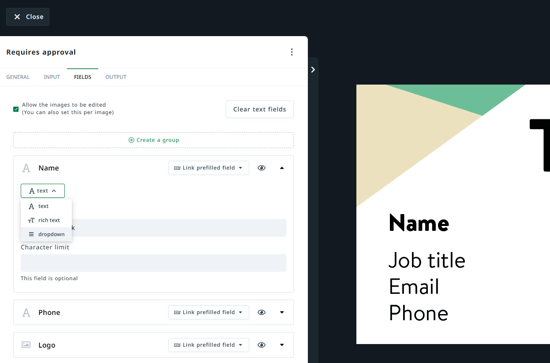
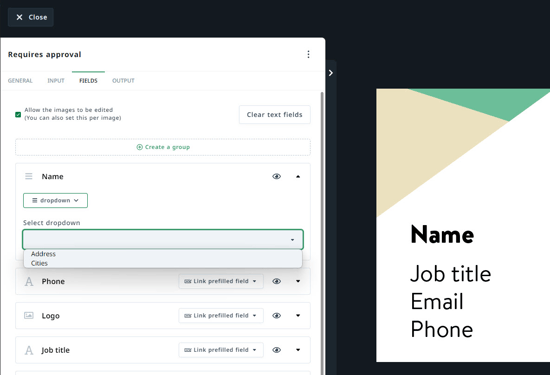
Your dropdown field will be available in template settings as a text field. Click the text menu and select dropdown.
Click into the Select dropdown menu to select the appropriate dropdown field.
Editing and Deleting Dropdowns
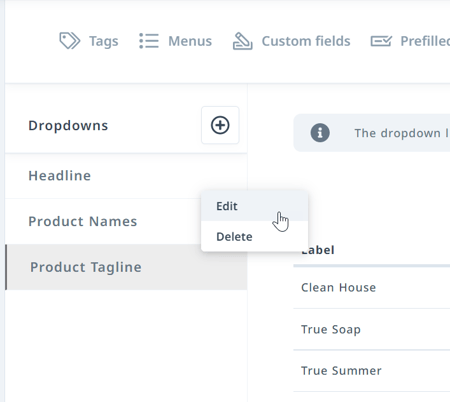
Click the actions menu to right of an option and select Edit to edit the label or value. Select Delete to delete an option. Deleting an option or dropdown will not remove the value from any publications that have already been created.
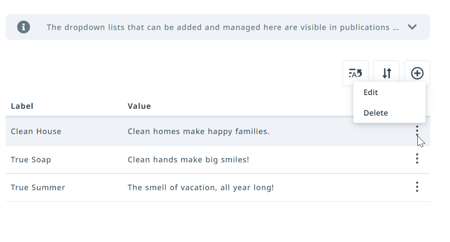
Click the actions menu to the right of a dropdown name to edit the name or delete the entire dropdown.