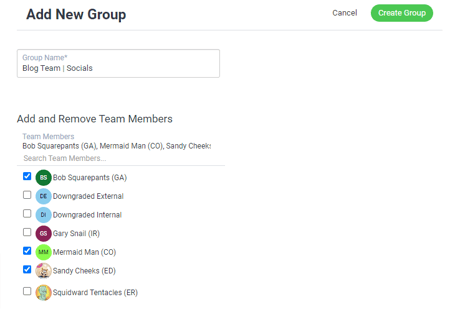
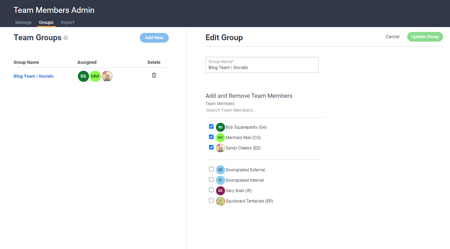
With the Team Groups feature, global admins (GAs) can now easily create custom groups and add specific team members, making it effortless to bring team members, departments, or specific project groups together.
Once a group is created, you can use the group's unique name to @mention the entire group in comments, which ensures everyone in the group is notified and can participate in the discussion. Users will be notified by Dashboard and browser notifications, depending on their personal notification settings. No more individually mentioning team members one by one!
This feature is perfect for established teams that need to collaborate closely on projects, share updates, and stay informed.
With this feature, users will be able to:
• Create and edit Group names and add specific team members (GAs only)
• Delete groups without impacting old comments (GAs only)
• @mention whole teams or departments with ease.
Features described in this article are not included in all subscription plans. Interested in expanding your feature set? Contact the Lytho Support Team for further assistance.
TABLE OF CONTENTS
How to Add a Team Group
1. Global Admins can navigate to the Account Admin and then click the Team Members tab. From there, click the new sub-tab called "Groups".
2. Click the Add New button — this will load the Group builder form on the right side of your screen.
3. Input a concise, descriptive group name — You can use any characters and spacing that you wish.
a. Recommendation: If multiple groups are needed, we'd recommend you use some form of naming convention to make group names easy to remember.
2. Select the Team Members you wish to be included.
3. When you're done configuring the group, simply click the Create Group button and your group will be saved!