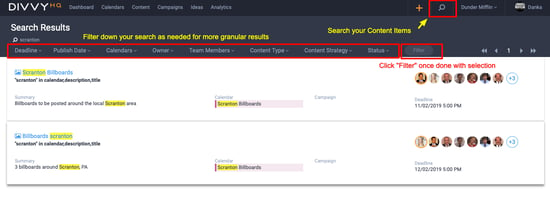
This article provides details on using Divvy's content search engine and how to navigate search results.
Are you trying to find an article you worked on last week or even last year, and just can't remember where to start looking for it? Or perhaps you have an idea for a new piece of content, but you'd like to check the Divvy archive for a past, approved piece that can be repurposed?
Enter Divvy Search.

Users can search for content via two areas in Divvy. There is a persistent search box located in the top header of the platform (shown above). Or you can go to the Content Interface and click the Search tab, which provides an additional search input field.
Divvy search works just like other boolean search tools in that you can input a single keyword or a phrase to find the content you are looking for. Current searchable fields include:
| Title | Buyer Stage | Campaign |
| Summary | Content Owner | Keyword/Tags |
| Assigned Member | Calendar | Content (in the WYSI) |
| Publishing Channel | Content Type | Publish To |
| Promotional Channel | Topics/Categories | Attachment Title |
Upon initiating a search, you will be transitioned to the search results view (within the Content interface) and you'll see matching search results with basic information about the content item. Your search phrase will show as highlighted text if it appears in a content item's Calendar, Campaign, Description and/or Title. If your search yields a large number of content items, you can filter it down by selecting each appropriate dropdown option. You can also use AND, OR, or NOT within your search. A single click on the content item title will open up its corresponding Quick Edit Overlay.