Stakeholders with permissions to create Requests will be able to filter, sort, and create Custom Views within the Requests workspace. Creating unique views allows for easy access to requests and important information for your organization.
TABLE OF CONTENTS
Viewing Requests
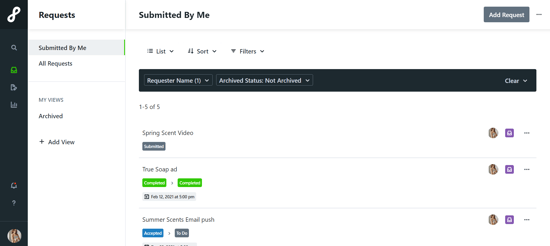
By default the Requests workspace will show the Submitted By Me view, listing your active, submitted requests, ordered by due date. Archived requests are filtered out of this view.
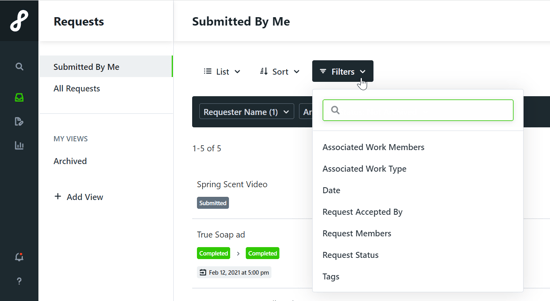
Narrow your results by clicking Filters and selecting from the available filters.
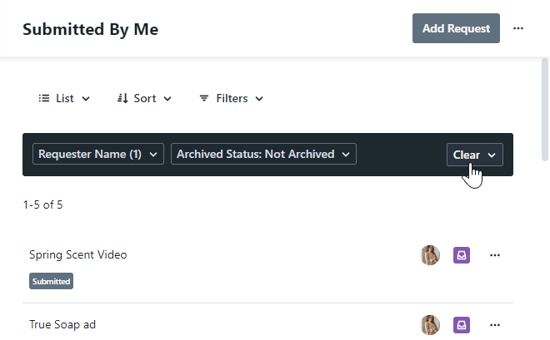
Filters currently in use will display in the filter bar. De-select the options to remove from your view or select Clear to the right to remove all filters.
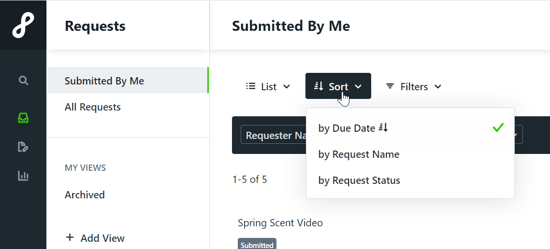
Change how your view is ordered by clicking Sort and selecting from the sort options. Options will sort in ascending order by default. Click your selection again to reverse the order.
Viewing by Table
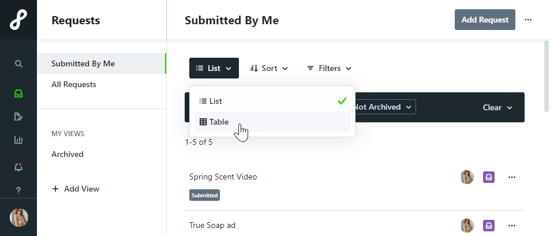
In addition to the List view, you also have the option to view requests in Table view. Table views provide more control over what information you see, making it easier to find what you need you need at-a-glance.
Click List and select Table to update your view.
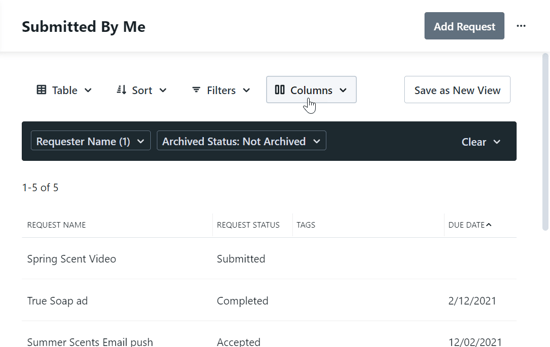
Add or remove columns by clicking Columns and selecting from the dropdown choices.
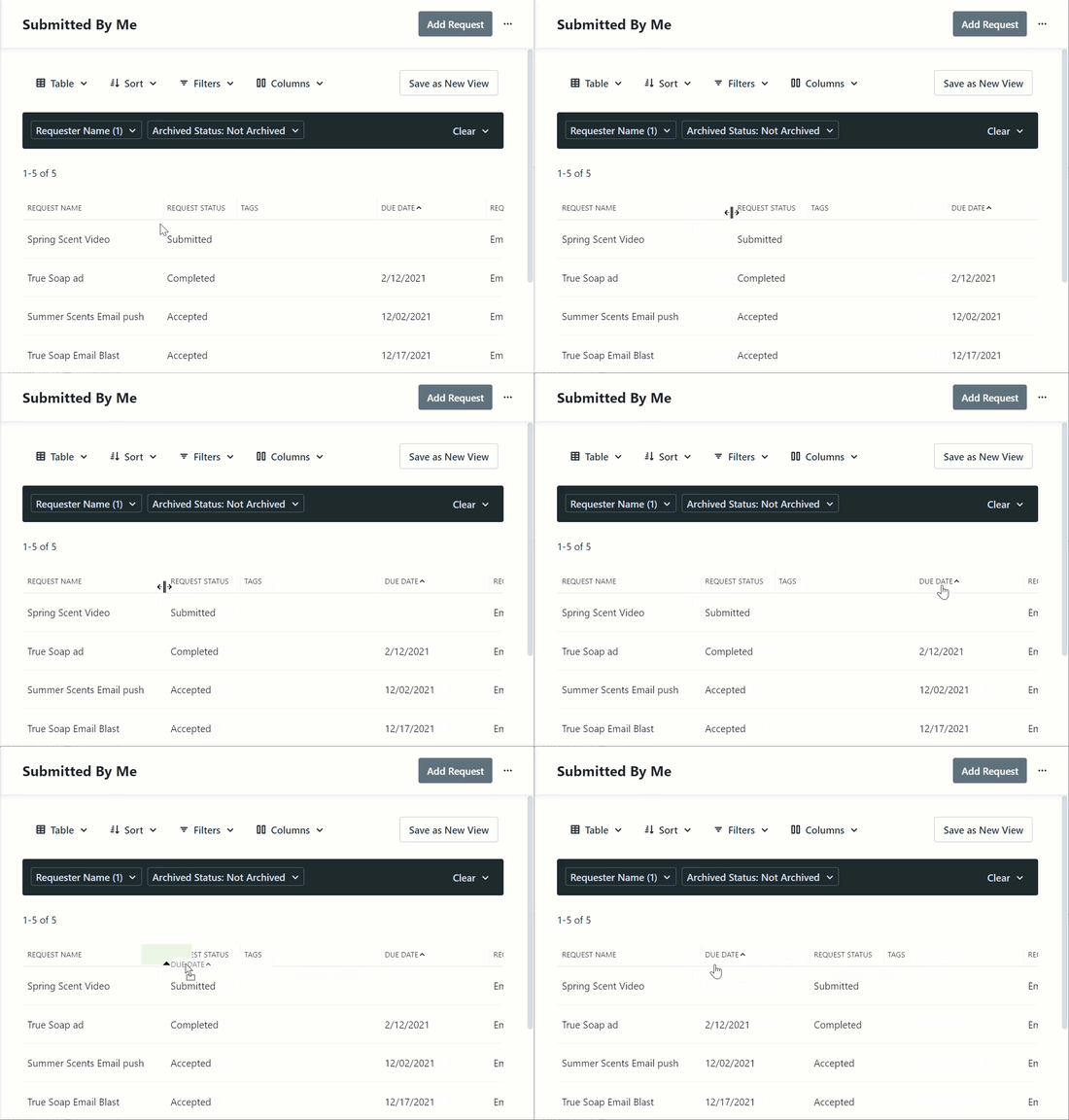
Sort, resize, and reorder your data by dragging and dropping selected columns.
Saving Custom Views
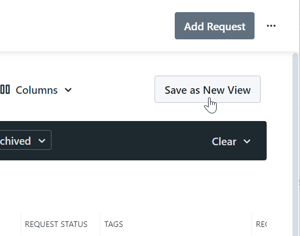
Save your preferences to return to whenever needed! When adding to a view select Save as New View in the top right.
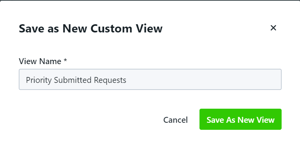
Enter a name for your view and click Save As New View.
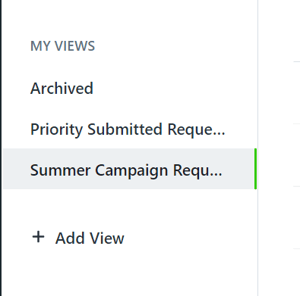
Any custom view you create will be listed under MY VIEWS to the left of your screen. Select + Add View to create new views from scratch. Drag and drop functionality allows you to re-order your list of custom views however desired.
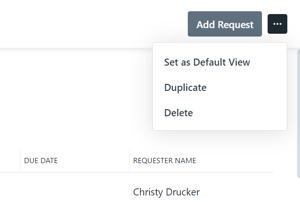
The actions menu in the top right of your custom view allows you to duplicate your view or delete if no longer needed. If you have a view that you return to daily, select Set as Default View to immediately access when viewing Requests.