Skip to content
English - United States
  • There are no suggestions because the search field is empty.

Creating an Image Variable

In Tempo, adding an image variable allows your end users to easily switch out images within a template. This guide will walk you through the steps to create and apply an image variable in your CHILI document.


TABLE OF CONTENTS

• Creating an Image Variable

• Link an Image Variable to the Lytho DAM

• Applying the Image Variable to a Frame


Creating an Image Variable

To begin, navigate to the Variable Data tab within your CHILI document. If no variables are set, you’ll see an empty panel.
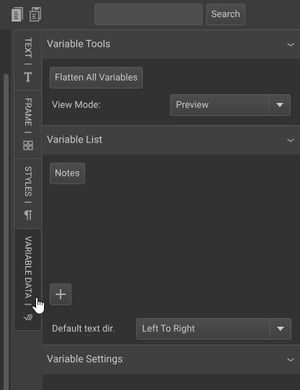
Variable data panel


To create a new variable, select the + (plus sign). A Variable Settings panel will appear below the Variable List panel. You can access this panel later by clicking the pencil icon next to any variable.
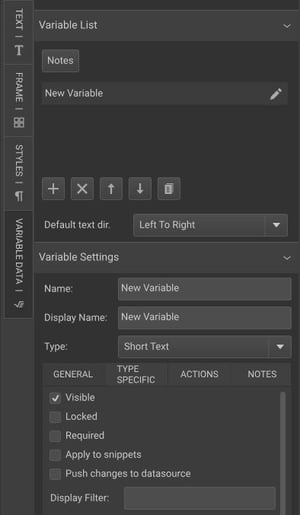
Variable list panel


Next, rename the variable. If your document contains multiple images, it’s helpful to give the variable a specific name to clearly identify the image it will control.


Ensure that the Variable Type is set to Image. This tells the system that the variable will be used for selecting and replacing images.
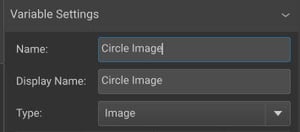
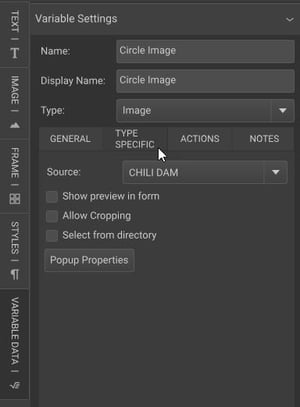
Variable settings panel


Link an Image Variable to the Lytho DAM

To allow your end users to choose from assets in your Lytho DAM when updating this image, you'll need to connect the variable to your DAM.


Within the Variable Settings panel, select the Type Specific tab. 

Type Specific tab


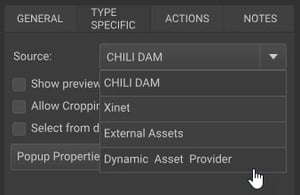
Under the Source dropdown, select Dynamic Asset Provider.

Dynamic Asset Provider button


This ensures that the variable will be linked to the Lytho DAM, allowing users to browse and select images from your asset library.

In Tempo, you can customize the user experience by setting parameters for asset selection. Stakeholders can choose from the entire Asset Manager, a specific set of assets, a combination of the Asset Manager and the option to upload new images, or only assets with specific tags.


To add a placeholder image for a variable in CHILI, you can use an asset ID from your DAM. This allows you to see a visual placeholder that stakeholders will replace.


To find the asset ID:

• Go to your Asset Manager and click on the center of the desired asset.

• At the end of the URL, you’ll see some preview text and a string of letters and numbers like this: /(preview:asset/preview/xxxx). The string of letters and numbers at the end is the Asset ID, excluding the forward slash and parentheses.

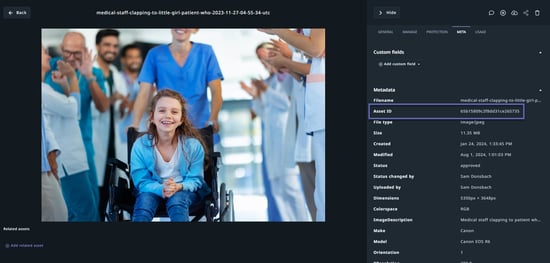
• You can also find the Asset ID under All Details > Meta > Asset ID.

Asset ID field


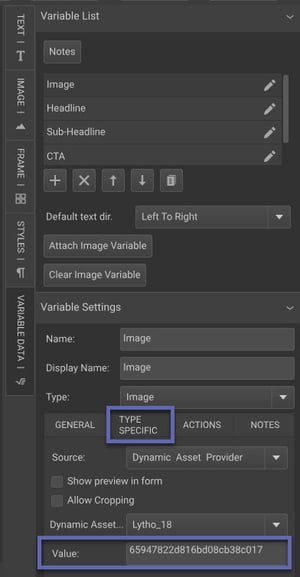
Copy the Asset ID and paste it into the Value field in CHILI BackOffice. First, select the image variable from the Variable Data panel, then from the Variable Settings dropdown, select the Type Specific tab to find the Value field.

Type Specific tab


This will populate your CHILI document with the asset from your DAM while you finish configuring the settings.


Applying the Image Variable to a Frame


With your image variable now created, it’s time to apply it to the appropriate image frame in your template.


First, select the image frame you want to make dynamic.


Then, you can apply the variable in three ways:


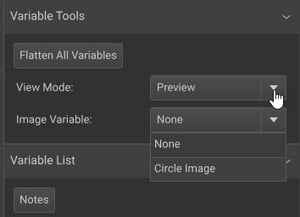
From the Variable Data panel, select the Image Variable.

Image Variable dropdown


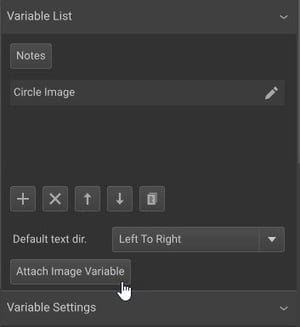
Or, choose Attach Image Variable from the options below the image frame.

Attach Image Variable button


Or, with the image frame selected, double click on the variable name you would like to apply.


All options will successfully attach the image variable to the frame.


By default, Tempo will attempt to match the dimensions of your placeholder image. To adjust this, navigate to the Image tab. It the Fit dropdown, you can configure how your images will fill the frame.

• Manual - Tempo will do its best to match the dimensions of your placeholder image

• Proportional - Tempo will fit the new image proportionally inside the frame. You can choose your anchor point for the best alignment.

• Proportional, Outside - Tempo will proportionally fill the frame - potentially allowing some of the image to flow outside the frame. You can choose your anchor point for the best alignment.


Need help building your Tempo templates?

Dream big. Let our experts bring it to life. Lytho's Professional Templating Services make it easy to scale high-quality, on-brand templates without burdening your internal design team. You provide the content, and we'll handle the complexity. Have a project in mind or want to learn more? Contact our team.