
Alternate Layouts is a powerful feature that allows one template to generate multiple different artwork variations. This feature allows one document to output different document sizes, different frame sizes, include or exclude certain pages, layers or frames, and alter frame positions. All you need is to ensure the information is there.
TABLE OF CONTENTS
• When to Use Alternate Layouts
• Set Up Variable and Constraints
• Setting Up Alternate Layouts
• Building the End User Interactions
• Creating a Tempo Template That Contains Alternate Layouts
When to Use Alternate Layouts
The first step is to decide which templates are a good candidate for Alternate Layouts. A general rule is to choose artwork that share the same content, but vary in size. When viewing your artwork side-by-side – or picturing what the end result should be – look for things like headline text, body text, images and background elements that are consistent, but vary in size.
• Varying digital ad sizes with the same image, call to action and button would be a great option
• Even if the artwork contains similar elements but there are several significant elements, this may not be a great fit for Alternate Layouts
Preparing Your Template
Once you’ve determined which artwork files you’d like to include in your template, you’ll want to start with – or build – the design that contains the most similarities among your files. This will help cut down on adding more frames once you bring your design into CHILI.
As you build your InDesign file following our best-practices checklist, you may choose to include representations of additional layouts you would like to configure. If you choose to use reference images for your different sizes/layouts, add each flattened image to an individual layer and name that layer accordingly. Ensure each image is positioned in the top left corner of your pasteboard and are represented at 100% of their original document size.
• Including reference image layers is optional and only meant to serve as a tool for building your Alternate Layouts
• When planning your image content to be selected by your end user, consider how that image will fit into the artwork or frame. If you plan to lock that image frame content, it’s best to ensure your images don’t contain excessive transparent space and are cropped as close to your artwork as possible. Ideally all images that are similar to one another should be sized and cropped as close to one another as possible. This will help ensure that the dynamic placement of these images by the software is consistent across all of the assets
Set Up Variable and Constraints
You’ll want to build as much of the template logic as possible before adding any alternate layouts.
Add and assign your variables, set image frame fit modes, and define copyfitting text behaviors — everything needed for the initial layout.
Setting Up Alternate Layouts
Once you have your base template configured, you’re ready to start adding alternate layouts. To do this, you’ll use the left toolbar to navigate to DOCUMENTS and choose the ALTERNATE LAYOUT LIST panel. You can add new layouts by clicking the + button in the lower left corner of the panel. You can then rename your Alternate Layouts, but keep in mind your end user will not see this list. You will set up the visible names using a list variable once your layouts are finalized.
• The [Default] layout cannot be renamed, but should still be used as your primary layout. You will rename this for your end users using a list variable once your layouts are finished.
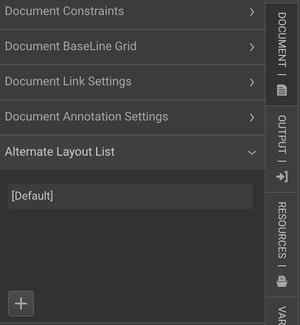
You are now ready to design your Alternate Layouts. Each new Alternate Layout can vary in size and design. You can reposition frames, resize frames, double check the font sizes, include or exclude pages/layers/frames as needed, and resize your document. For all of these settings, we simply configure them as we would if we were working on a normal template; the alternate layout selected in the Alternate Layout List is what determines which layout the settings are applied to.
• It’s typically best to move all of the frames before resizing the document, as once the document is resized, it can be difficult to select frames outside of the page area
• Note that unique frame content and formatting is not supported in alternate layouts. Only frame size and position can be made unique per layout. Attributes like frame color, image placeholders, and font size (unless you have enabled copyfitting) will apply to all layouts. Instead, you will use action logic to create dynamic colors, image content, and text formatting
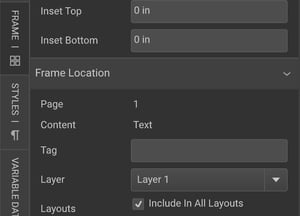
• Deleting a frame from one layout will remove it from all layouts. If a frame doesn’t need to appear in a specific layout, go to FRAME > Frame Location and uncheck Include in All Layouts. This allows you to specify which layouts the frame should appear in.
If you choose to bring in reference images, this is where they will come in to play. To use a reference image, it is best practice to follow these steps:
1. Select the layout you want to configure in the Alternate Layout List
2. Navigate down to the LAYER LIST panel and turn on the layer containing your reference image for that layout
• You may find it’s easier to re-design if this image is under the rest of your content. If needed, you can select that image frame and send it to the back
3. Select the layer(s) that contains your original artwork content (in the video example it’s “Layer 1”), and turn the opacity down to around 50%
• Doing this will allow you to see through your artwork to the reference image behind it. This allows you to reposition and resize your frames to match the reference design
• It can also be helpful to swap in the image and/or placeholder content from the reference image if it differs from your base design