Skip to content
English - United States
  • There are no suggestions because the search field is empty.

Creating a Text Variable

In Tempo Smart Templates, adding text variables allows your end users to easily edit specific text elements. Follow these steps to create and apply a text variable to your template in the CHILI BackOffice.


TABLE OF CONTENTS

• Creating a Text Variable

• Applying a Text Variable

• Add Placeholder Text (Optional)
 

Creating a Text Variable

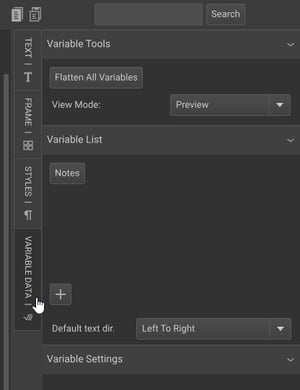
To begin, navigate to the Variable Data tab within your CHILI document. If no variables are set, you’ll see an empty panel.

Variable Data tab


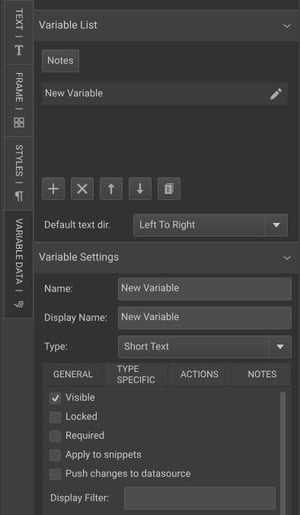
To create a new variable, select the + (plus sign). A Variable Settings panel will appear below the Variable List panel. You can access this panel later by clicking the pencil icon next to any variable.

 Variable Settings panel


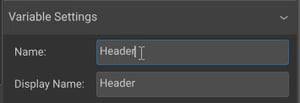
Next, rename the variable to reflect the content you want the user to edit. For example, if you want users to change the header text, you could name the variable "Header."

Naming variable settings


Tempo supports the following variable types from CHILI: short text (for single-line input), long text (for multi-line input with paragraph breaks), image, and list (for dropdown selections, typically used with Alternate Layouts). For this case, choose either Short Text or Long Text.


Applying a Text Variable

Now that your variable is created, it’s time to apply it to your template.


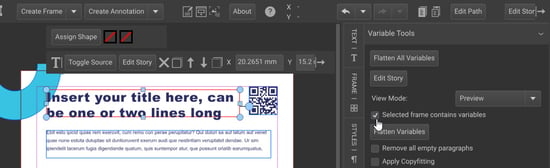
Select the text frame where you want to allow editing. Toggle on the Selected frame contains variables option found in the Variable Data panel under Variable Tools.

Selected frame contains variables checkbox


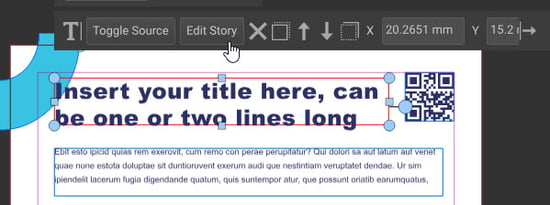
Click Edit Story right above the selected text frame.

Edit story button


Copy the current text in the frame (optional for later use) and remove it. 


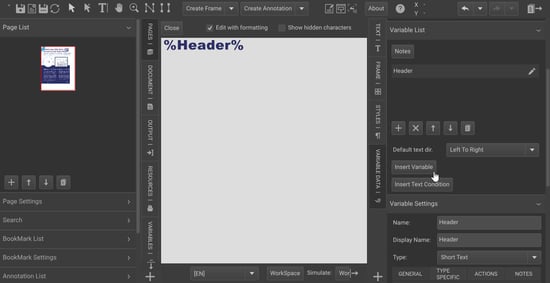
In the Variables List panel, select the appropriate variable from the list. Double-click it or click Insert Variable to add it to the text frame.

Insert Variable button


Click Close to save the changes.


Your text frame is now set up with the variable. Text frames can include both variables and static text, and multiple variables can be used within a single text frame. CHILI identifies variables by recognizing that the "Selected frame contains variables" and then searches for variable names enclosed in percentage signs (%).


Add Placeholder Text (Optional)

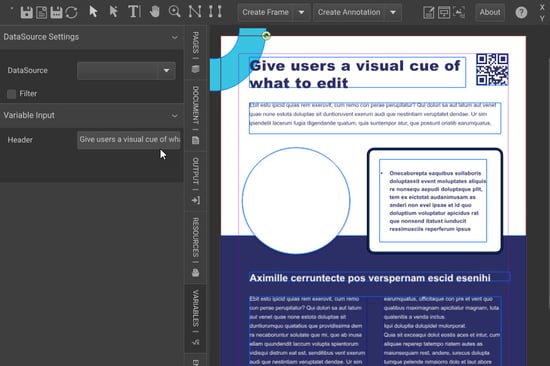
To make the experience more intuitive for your end users, you can add text as a placeholder within your document. This will give users a visual cue of the default text they can edit or replace. 


In the Variables panel, paste the copied text from the step above or type new copy.

Variable input field


Need help building your Tempo templates?

Dream big. Let our experts bring it to life. Lytho's Professional Templating Services make it easy to scale high-quality, on-brand templates without burdening your internal design team. You provide the content, and we'll handle the complexity. Have a project in mind or want to learn more? Contact our team.