It’s a common best practice to use libraries to control your brand elements. CHILI Publisher allows you to leverage this “library” capability by using Snippets. This guide will walk you through how to set up a CHILI Fonts and Styles Library and a CHILI Assets Library to streamline your future projects.
TABLE OF CONTENTS
• Benefits of Creating a Library
• Create Your Fonts and Styles Library Document
• Create Your Assets Library Document
• Apply your Snippet Library in CHILI
Benefits of Creating a Library
You can create your own reusable Fonts and Styles Library that includes:
• Brand fonts
• Commonly used paragraph and character styles
• Brand color swatches
You can also create an Assets Library that includes common design elements such as:
• Logos
• Static design images
• Artwork elements
• Any recurring elements that need to be placed in their own frames – think of this as a way to copy and paste frames between CHILI files.
By creating a designated library using Snippets, you can maintain brand consistency and save valuable time when starting new projects.
Create Your Fonts and Styles Library Document
To begin, you’ll create a CHILI document that serves as your centralized design library.
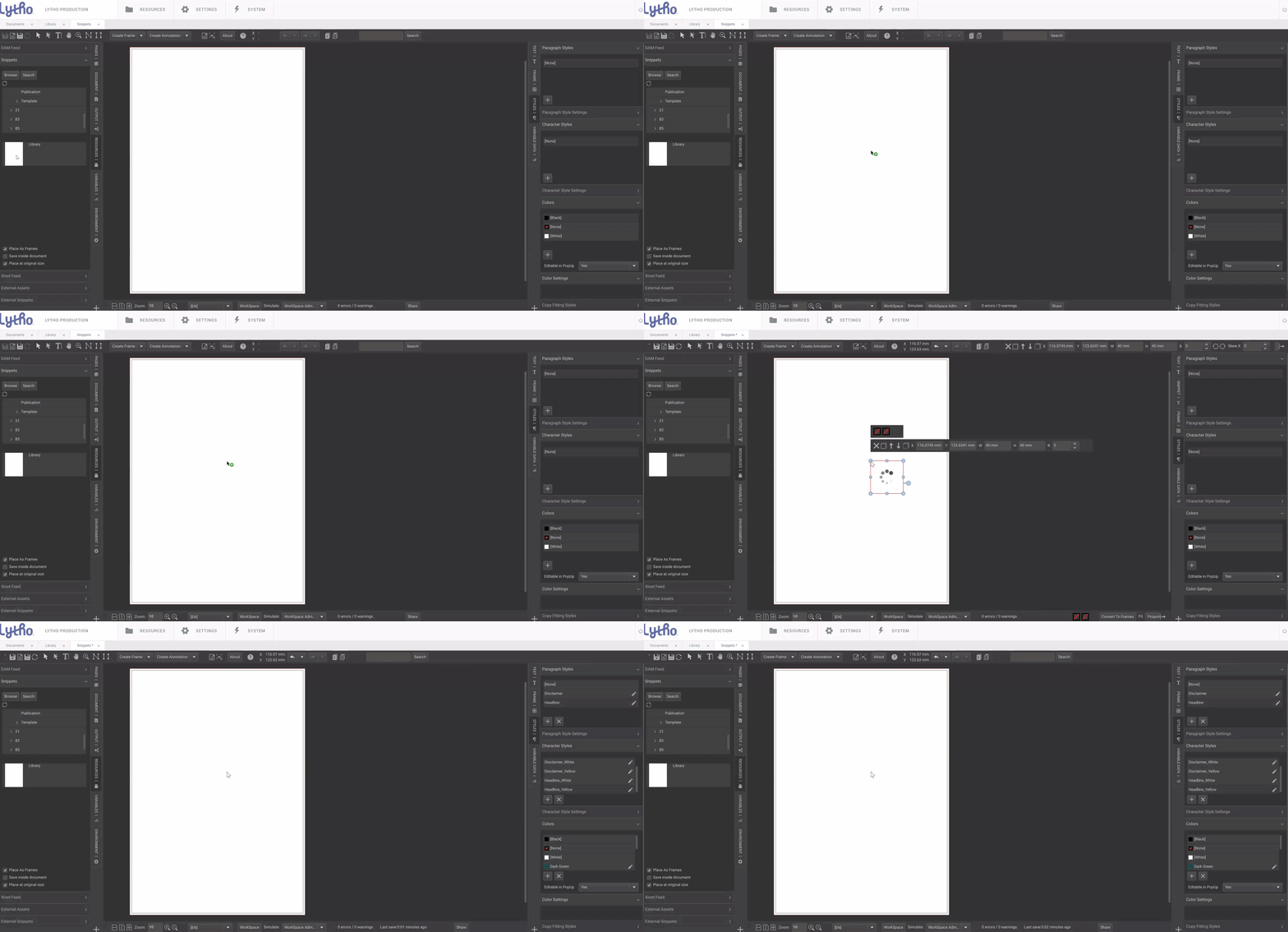
1. Create a new document in your BackOffice. Best practice is to save this somewhere outside your Template folder so it is not visible in Tempo.
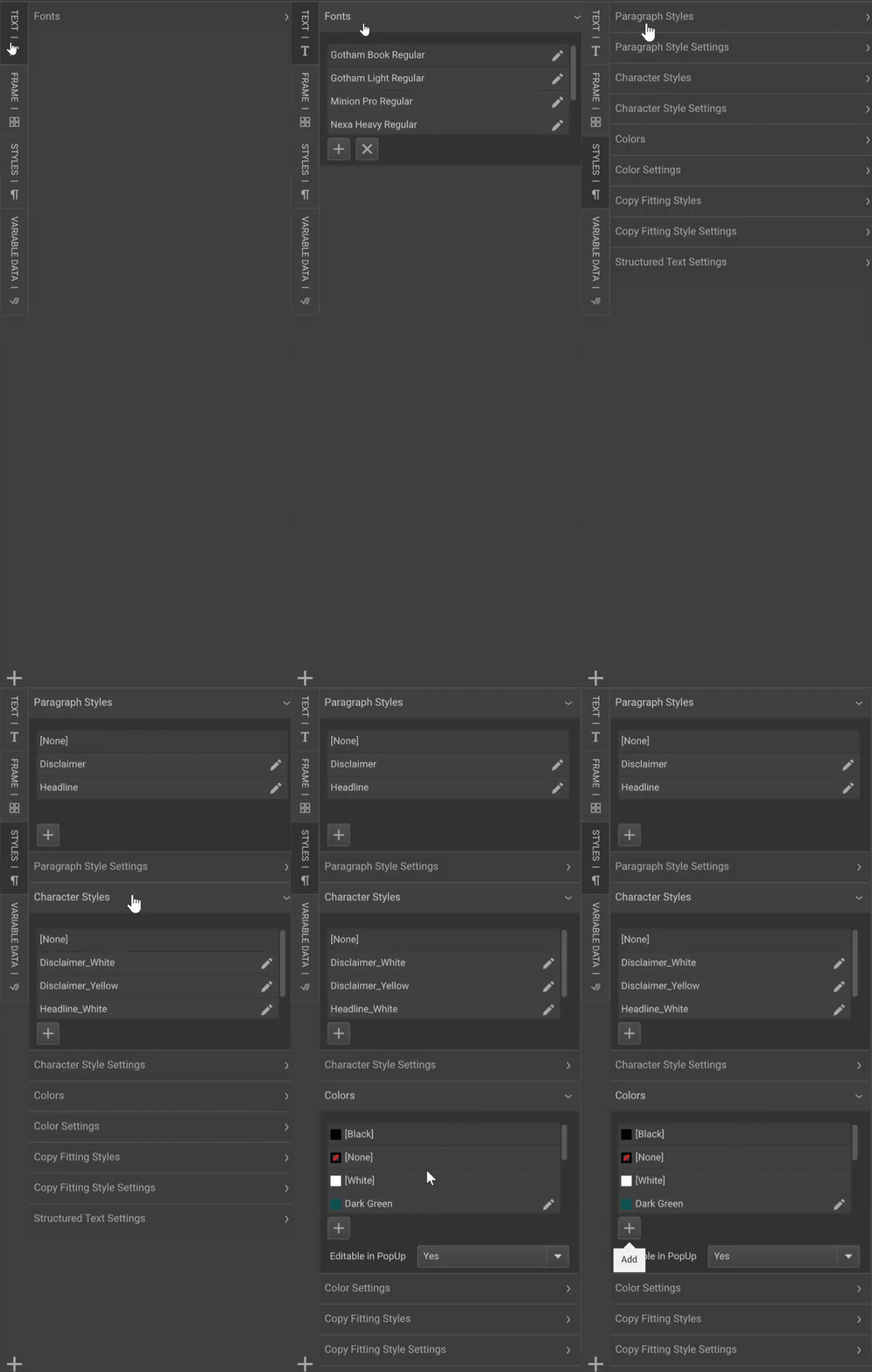
2. Open your Fonts and Styles Library document and navigate to the Text tab on the right hand side. Click the plus sign (+) to add fonts. Navigate to the appropriate font files and upload them as needed.
3. Navigate to the Styles tab and define all paragraph and/or character styles you frequently use. These will carry over into any new document you apply the library to.
4. Also in the Styles tab, you can add all your brand colors to the swatches panel.
This document will now act as your Fonts and Styles Library.