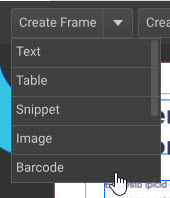
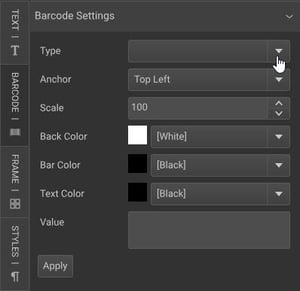
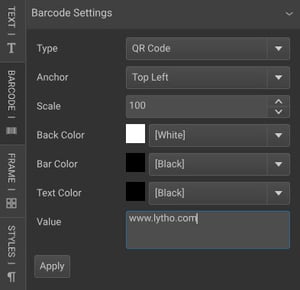
Adding a QR code to your documents can enhance interactivity and provide quick access to online resources. This guide will walk you through the steps to create and add a QR code in the CHILI BackOffice.
TABLE OF CONTENTS
• Add and Configure Your QR Code
Creating a Barcode Type
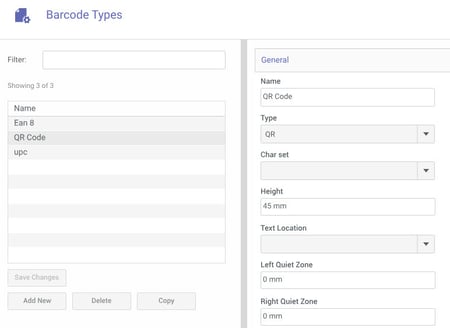
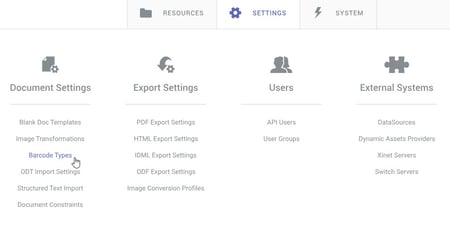
From the CHILI BackOffice, navigate to the Settings tab. Under the Document Settings column, locate the option for Barcode Types. This is where you can manage the types of barcodes available for your designs, including QR codes.
To create a new QR code type, click Add New.
Choose your barcode type, name your new barcode type and hit Add. You should now see this new barcode type appear in your list.