
Works with: Lytho Workflow & DAM
Lytho Claude Connector allows users to securely connect Claude to their Lytho account and interact with Lytho using natural language. Once connected, Claude can access Lytho tools and information based on the authenticated user's permissions, enabling users to search Projects, manage Proofs, work with digital assets, perform brand compliance reviews, and summarize Campaign activity directly within Claude.
Features described in this article are not included in all subscription plans. Interested in expanding your feature set? Contact the Lytho Support Team for further assistance.
TABLE OF CONTENTS
Prerequisites
Before connecting Claude to Lytho, ensure you have:
-
An active Lytho subscription that includes MCP access and access to Workflow and/or Digital Asset Management (DAM)
-
Your Lytho organization subdomain
-
Claude on a plan that supports custom connectors, on the web, on desktop, or in Claude Code.
-
Appropriate permissions for the actions you intend to perform
Note: The Lytho Claude Connector only exposes tools and actions your account is authorized to use. Some Workflow and DAM actions may require additional permissions or administrator-enabled features.
Permissions
The Lytho Claude Connector only exposes the tools and data your authenticated Lytho account is permitted to access. Available actions may vary based on your role, workspace permissions, enabled Lytho products, and administrator-enabled features.
Actions performed through Claude use your Lytho account and require the same permissions as if they were performed directly in Lytho.
Connecting Claude to Lytho
Connecting Lytho and Claude involves two steps:
- Organization Setup: A Claude Owner or Primary Owner adds Lytho for Claude to your organization. This is a one-time setup for your organization.
- Individual User Connection: Once Lytho for Claude is available, each user connects and signs in to their own Lytho account.
Organization Setup
For Claude Owners and Primary Owners
Complete these steps once to make Lytho for Claude available to users in your Claude organization.
Before getting started, determine whether your organization's Lytho account is hosted in the European Union (EU) or non-EU environment. You can identify this from your Lytho account URL:
- A URL such as
yourcompany.wf.lytho.ususes the non-EU environment. - A URL such as
yourcompany.eu-1.lytho.iouses the EU environment.
To add Lytho for Claude to your organization, follow these steps:
- Open Claude and go to Organization Settings.
- Under Libraries & Access, select Connectors.
- Select + Add, then Custom > Web.
- For the connector name, enter Lytho for Claude.
- Enter the appropriate server URL for your Lytho environment:
- Non-EU:
https://latus-mcp.wf.lytho.us/mcp - EU:
https://latus-mcp.eu-1.lytho.io
- Non-EU:
- Leave the advanced settings blank and enable individual sign-in.
- Select Add.
You're done with organization setup. Lytho for Claude is now available for users in your Claude organization to connect.
Adding the connector does not automatically sign individual users into Lytho. Each user should complete the following steps to connect their own Lytho account.
Connect Your Lytho Account
For individual users
Your Claude administrator must make Lytho for Claude available to your organization before you can connect. If Lytho for Claude doesn't appear in your connectors list, contact your organization's Claude Owner or Primary Owner and ask them to complete the organization setup.
To connect your Lytho account to Claude, follow these steps:
- In Claude, open Settings and then Connectors.
- Find Lytho for Claude in your connectors list and select Connect.
- When prompted, enter your Lytho subdomain. This is the first part of your Lytho account URL. Example: If your Lytho URL is
yourcompany.us-1.lytho.us, enteryourcompany. - Your Lytho login page will open. Sign in with your Lytho email and password, or select Log in with SSO if your organization uses single sign-on.
- After you sign in, you'll be redirected to Claude.
After authentication is complete, Claude will be able to access Lytho based on your assigned permissions.
Note: Exact menu labels vary between Claude versions; the pattern is always: add a custom/remote connector, paste the URL, then sign in.
For more information about using the Lytho for Claude Connector through Claude Code, authentication, additional technical documentation or troubleshooting, refer to this supporting article.
Using the Connector
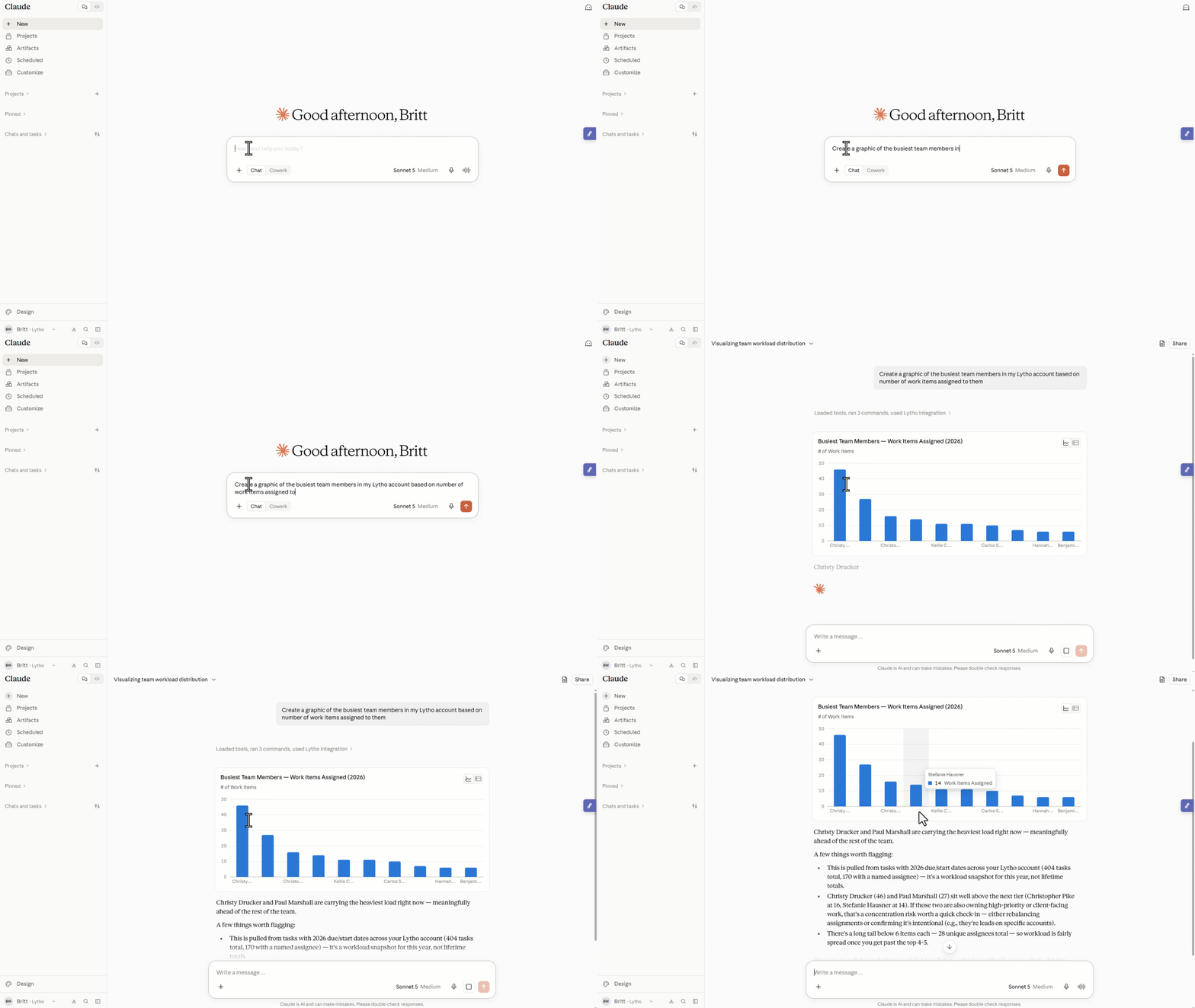
Once connected, you can interact with Lytho using natural language. Claude only accesses information you explicitly request and can perform actions based on your Lytho permissions.
Common use cases include:
Brand Compliance
-
Review text and images against configured brand guidelines and compliance requirements.
-
Example prompt: Check this tagline and product image against our brand guidelines and tell me which checks fail and why.
Creative Workflow
-
Search projects, manage proofs, attach approval routes, review tasks, and track workflow activity.
-
Example prompt: Create a proof from this PDF in the Spring Campaign project, attach the Marketing Review route, and add instructions for reviewers.
Digital Asset Management (DAM)
-
Search assets and collections, upload files, and organize content within your DAM.
-
Example prompt: Find all approved logo assets in our DAM and add the PNG versions to a new "Q3 Campaign" collection.
Project Insights
-
Summarize project activity and review recent updates.
-
Example prompt: Summarize project 12345 and recap the last two weeks of activity.
Request Insights
-
Analyze request details and responses to individual questions within Workflow request forms.
-
Example prompt: Review requests submitted through the [request form name] over the last 90 days. Determine how many were submitted by [Department name] and tagged as “Rush.”
Tool Reference
The tool reference below outlines the Lytho tools available through the connector, what each tool allows you to do, and the access level. The Access column identifies whether a tool reads information or can make changes in Lytho. Tools marked Confirms first require your explicit confirmation before taking action.
Brand compliance
|
Tool |
What it does |
Access |
|
reviewer |
Lists the brand-compliance packs and individual checks configured for your account. Call this first to discover what is available. |
Read |
|
compliance_check_by_pack |
Runs brand compliance checks on text, an image, or both in one call, either as a whole named pack or as specific named checks. |
Read |
|
compliance_request_upload_url |
Issues a short-lived, single-purpose upload address so large images or documents can be sent for checking without embedding them in the conversation. |
Write, temporary storage only |
Available checks. Which checks exist depends on how your account is configured. Ask Claude to run reviewer to see yours. The connector supports typography, logo, colour, footer, tone of voice, text, image quality, content claims, blocklist terms, allowlist terms, promotional language, calls to action, artificial intelligence transparency disclosure, and email regulatory checks.
Results are returned per check, with each violation carrying a message, a severity, and where applicable a suggested fix.
When a check cannot run, the connector says so plainly. The result is marked as needing manual review, with a retry hint, rather than being reported as a compliance failure. A technical fault is never presented to you as a brand violation.
Projects, tasks, and campaigns
|
Tool |
What it does |
Access |
|
get_project_details |
Lists the projects available to you. |
Read |
|
get_project_data |
Returns the detailed data for a project. |
Read |
|
get_project_templates |
Lists available project templates. |
Read |
|
get_campaigns |
Lists campaigns. |
Read |
|
get_reports |
Lists Workflow reports. |
Read |
|
search_work |
Searches work items by keyword, including proofs and reviews. |
Read |
|
get_work_item |
Fetches a single workflow entity by type and identifier. |
Read |
|
get_task_detail |
Fetches tasks in full detail, including tags, work group, assignees, and per-assignee dates. |
Read |
|
get_calendar_events |
Reads calendar work items within a date range. |
Read |
|
get_lytho_url |
Builds a direct link into Lytho for a given item. |
Read |
|
create_project |
Creates a project. |
Write |
|
create_project_with_import |
Creates projects in bulk from a comma-separated values import. |
Write |
|
create_campaign |
Creates a campaign. |
Write |
|
create_work_group |
Creates a work group container inside a project. |
Write |
|
create_task |
Creates a task inside a project's work group. |
Write |
|
update_workflow_item |
Updates fields on a project, task, campaign, or project group. Supports a preview mode that shows what would change without changing it. |
Write, destructive, Confirms first |
|
update_calendar_event |
Changes start dates, due dates, or both, on a project or task. |
Write |
|
delete_workflow_item |
Permanently deletes a project, task, or proof. |
Write, destructive, irreversible, Confirms first |
|
add_work_item_member |
Adds a member to a project or an assignee to a task. |
Write |
|
remove_work_item_member |
Removes a project member or a task assignee. |
Write, destructive |
|
add_campaign_member |
Adds a member to a campaign. |
Write |
|
remove_campaign_member |
Removes a member from a campaign. |
Write, destructive |
|
create_comment |
Posts a comment on a campaign, project, or task. |
Write |
|
update_comment |
Edits the text of an existing comment. You can only edit your own. |
Write |
Proofs and approval routing
|
Tool |
What it does |
Access |
|
get_proofs |
Lists proofs, optionally filtered by project. |
Read |
|
get_reviews |
Lists the proofs waiting on your own review, which is your reviewer queue. |
Read |
|
get_proof_route_templates |
Lists published approval route templates. |
Read |
|
create_proof |
Creates a proof, which is a review item. |
Write |
|
upload_proof |
Uploads one or more files to an existing proof. |
Write |
|
create_and_upload_proof |
Creates a proof and attaches its content in a single step, from uploaded files or by capturing a web address, and can attach an approval route at the same time. |
Write |
|
create_proof_route |
Builds a full review route on a proof: every reviewer tier in order, optionally with tier deadlines, and optionally saved as a reusable template. |
Write |
|
attach_proof_route |
Attaches an existing route or route template to a proof. |
Write |
Project insights
|
Tool |
What it does |
Access |
|
project_insights_aims |
Runs analysis over a project's real data to answer specific questions you ask about status, risk, overdue work, or bottlenecks. |
Read |
|
packaged_insights_aims |
Runs a predefined analysis over a project. |
Read |
Digital asset management
|
Tool |
What it does |
Access |
|
dam_search_assets |
Searches assets in the asset library. |
Read |
|
dam_search_suggest |
Returns autocomplete suggestions for asset search. |
Read |
|
dam_get_asset_details |
Returns full metadata for a single asset: dimensions, size, tags, versions, previews, and custom fields. |
Read |
|
dam_download_asset |
Returns a time-limited download address and the real file name for an asset. |
Read |
|
dam_search_collections |
Searches collections. |
Read |
|
dam_list_tag_groups |
Lists every tag, organized into tag groups. |
Read |
|
dam_list_tag_menus |
Lists the curated tag menus shown in the Lytho interface. |
Read |
|
dam_waiting_room |
Lists assets sitting in the waiting room. |
Read |
|
dam_approval_queue |
Lists assets awaiting your approval, grouped by uploader and date. |
Read |
|
dam_upload_asset |
Uploads a new asset. |
Write |
|
dam_save_to_asset_manager |
Promotes waiting-room assets into the main library. |
Write |
|
dam_send_for_approval |
Submits waiting-room assets for approval. |
Write |
|
dam_approve_assets |
Approves pending assets, promoting them into the library. |
Write |
|
dam_decline_assets |
Declines pending assets. |
Write |
|
dam_bulk_version_update |
Replaces an existing asset's file with a new version. |
Write |
|
dam_create_collection |
Creates a collection. |
Write |
|
dam_save_to_collection |
Adds assets to a collection. |
Write |
|
dam_share_asset |
Creates a copyable share link for one or more assets. No email is sent. |
Write, Confirms first |
|
dam_share_asset_via_email |
Emails a share link for one or more assets to named recipients. |
Write, sends email, Confirms first |
|
dam_update_share_link |
Updates an existing share link's name, expiry, or download settings. |
Write, Confirms first |
How asset search behaves. Searches run as plain keyword matching by default and are ranked by relevance, so an asset that matches only in its description still surfaces first. Ask Claude to use semantic search explicitly if you want it. A search with no search terms is returned newest first, since relevance means nothing without a query. If your workspace has semantic search switched off, a request for it quietly returns keyword results rather than failing.
Utility
|
Tool |
What it does |
Access |
|
proxy_image |
Fetches an image by web address on the server so it can be used in a compliance check. |
Read |
|
get_feature_upgrades |
Lists Lytho capabilities available as add-ons that your workspace has not enabled, each with a short description and a link. Returns nothing when you already have everything. |
Read |
Need Help?
If you experience issues connecting to or using the Lytho Claude Connector, see our troubleshooting tips. If the issue persists, please contact Lytho Support.
When contacting Support, include:
-
The Claude environment being used (Web, Desktop, or Claude Code)
-
Your Lytho organization subdomain
-
The prompt submitted to Claude
-
Any error messages received