Works with: Lytho Planner (Divvy)
Canto is a popular digital asset management (DAM) platform used by hundreds of companies around the globe. As a repository for creative assets, it's a big time saver when your repository can be directly connected to your content planning and production hub. To that end, Divvy's integration with Canto should bring greater efficiencies to your content workflow and eliminate some of the platform hopping often found within the content production process.
In order to use this integration, you'll need to be an existing Canto customer. Please contact Support to discuss enabling this within your account.
TABLE OF CONTENTS
How to Connect
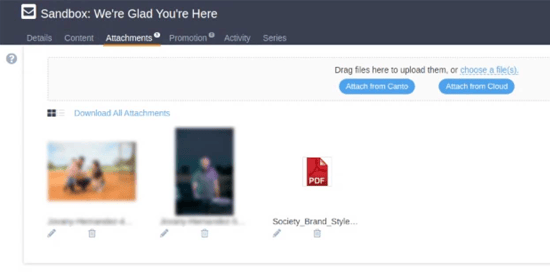
To connect your DivvyHQ account with Canto, you can go to the Attachments tab of a content item you are working on, and click the Attach from Canto button.
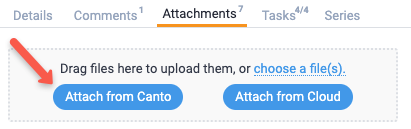
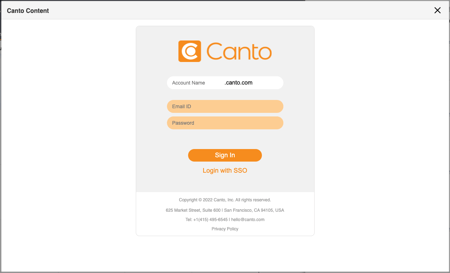
A pop-up window will display and from there, simply plug in your Canto login credentials or click the Login with SSO if that is currently enabled for your Canto account:
Browse Your Assets
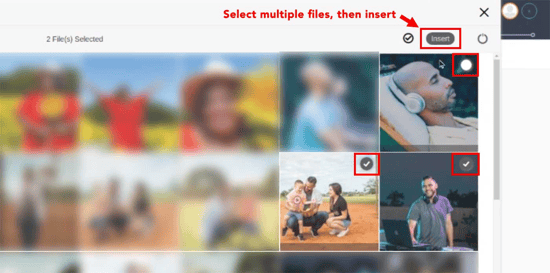
From there, you will see your Canto file repository and you can browse for a file that you'd like to attach. You can also utilize the Global Search to find a file by a specific tag.
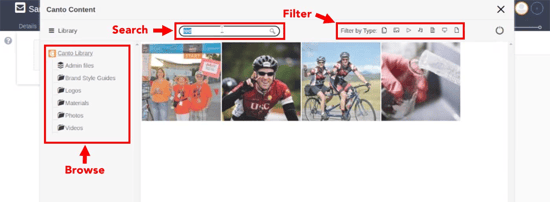
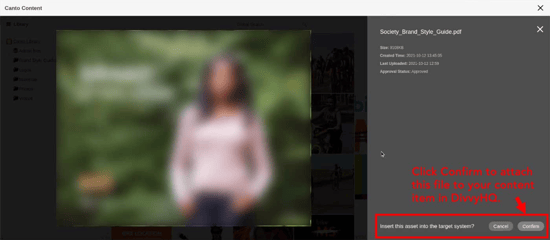
When you single click an individual file, the interface will expand and provide more details on the file.