
By single clicking on any campaign in the Calendar, you'll trigger the Campaign Slide-in, allowing you to preview and edit the selected campaign's pertinent details. You can also trigger the Campaign Slide-in from the Sandbox or content item slide-in, by clicking the name of the campaign associated with the content item.
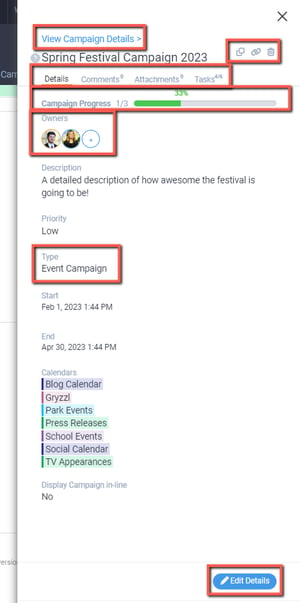
With the Campaign Slide-in open, here's a quick rundown of what you can see and do (highlighted in red, starting from the top).
• View Campaign Details link - clicking this will take you into the full detail view (interface) of the campaign
• Additional action buttons (icons) - From the campaign slide-in, you can duplicate a campaign, copy URL to Clipboard and send the campaign link to another user via message or email, or delete the campaign.
• Campaign slide-in tabs - the slide-in includes a Details tab (main details), a Comments tab, an Attachments tab, and a Tasks tab (campaign workflows).
• Campaign Progress bar - This bar advances as associated content items are completed (marked as published).
• Campaign owner and co-owner(s) - these are the users who have access to edit this campaign
• Campaign Type - self-explanatory
• Edit Details - clicking this button at the bottom will switch the entire slide-in to edit mode so you (the campaign owner) can make changes.
The following fields are editable in the Campaign Slide-in Edit View:
• Campaign title
• Description
• Campaign type
• Campaign workflow
• Campaign start date
• Campaign end date
• Associated calendars
• Priority
After making changes to pertinent fields, just click the green Save Changes option in the lower right-hand of the Campaign Slide-in to retain them.