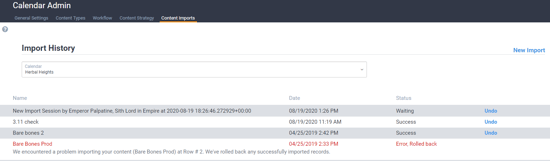
If you’ve been living in spreadsheet hell, DivvyHQ provides a simple import tool that enables bulk importing of your content data from a CSV file.
To get started importing your content, click your name in the top right corner of Divvy's interface, select Account Admin, and then from the Calendar Admin, click the Content Imports tab.
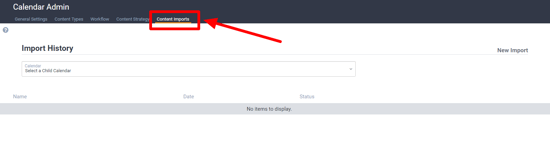
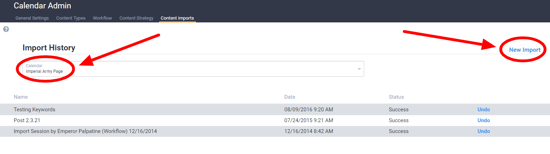
Step 1 - Select a Calendar and Click New import
Due to Divvy’s calendar-based architecture, and our desire to make the import process simple, users can only import content data into one calendar at a time. For example: Let’s say you have an editorial calendar spreadsheet that lists all types of content. But you’ve set up separate Divvy calendars for each content type. You’ll need to separate your spreadsheet into different CSV files that mirror your DivvyHQ calendar setup. Then when you’re ready to import, you’ll start by selecting the individual calendar to which you wish to upload the first batch of data.
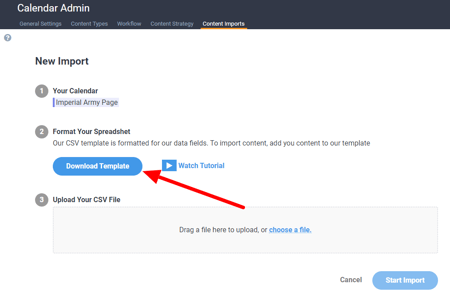
Step 2 - Format your Spreadsheet
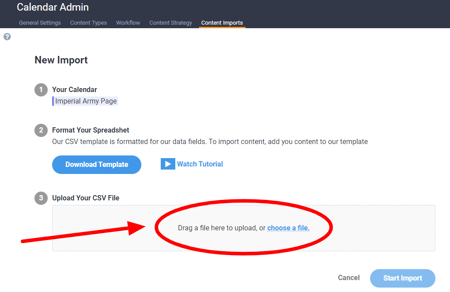
Formatting your spreadsheet properly is the most important part of this process, and probably the most challenging. To help, Divvy’s import wizard includes a downloadable CSV template and a video tutorial.
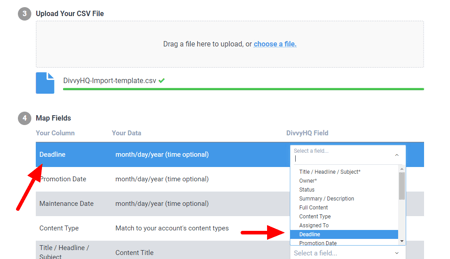
The key to success is to ensure that Divvy can recognize and map your data to the corresponding fields, team members and meta data that you’ve loaded into your DivvyHQ account. For example: If team member names and meta data is spelled differently between your spreadsheet and your Divvy account, the import process may result in data inaccuracies. Capitalization matters for Content Types, but not for Content Strategies or Workflows.
When you’ve completed the formatting process, save your file as a CSV UTF-8 and jump back into Divvy’s import wizard.