Branding your CHILI BackOffice instance helps create a cohesive identity that reflects your organization’s values. This guide will walk you through the steps to add logos and customize colors in your CHILI BackOffice.
TABLE OF CONTENTS

Branding your CHILI BackOffice instance helps create a cohesive identity that reflects your organization’s values. This guide will walk you through the steps to add logos and customize colors in your CHILI BackOffice.
TABLE OF CONTENTS
Branding the BackOffice
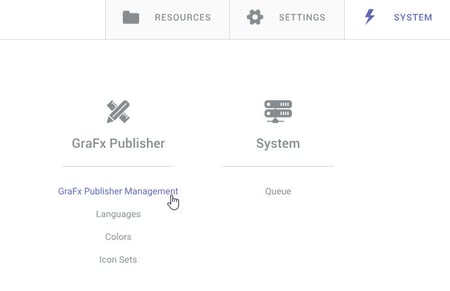
From the CHILI BackOffice, navigate to the System tab. Under the GraFx Publisher column, click on GraFx Publisher Management.
Add Your Logos
To add a logo to the CHILI BackOffice, you will need an embed link to your logo. You can get this from your Lytho DAM.
There are two locations that allow a personalized logo:
• The Logo URL will be the logo displayed in the top left navigation bar.
• The Login Logo will appear on the splash screen.
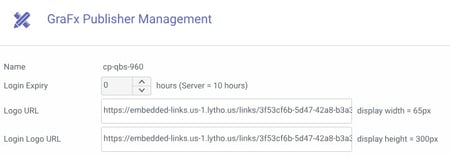
After adding the logo URLs, click on Save Changes at the bottom of the page.
Your logos will now be displayed, giving your account a personalized touch.
Customize Your Color Scheme
To further align your CHILI BackOffice with your brand, you can also customize the color scheme.
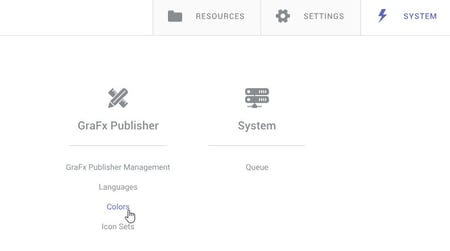
Return to the System tab. Under GraFx Publisher column, select Colors.
Paste HEX codes into the color options provided in the GraFx Publisher management section.
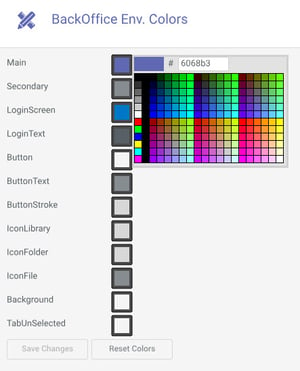
Once you’ve entered the desired colors, select Save Changes.
Dream big. Let our experts bring it to life. Lytho's Professional Templating Services make it easy to scale high-quality, on-brand templates without burdening your internal design team. You provide the content, and we'll handle the complexity. Have a project in mind or want to learn more? Contact our team.