A brand guide consists of pages and blocks. Each page can contain multiple blocks with different kinds of content. A block can contain six different types of content:
TABLE OF CONTENTS
• Text
• Colors
• Gallery
• Button
Text
The Text block allows you to create blocks of text and formatting tools are found in the bar above the text box.
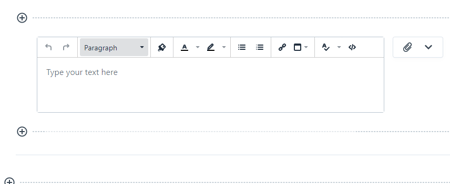
Image & Video
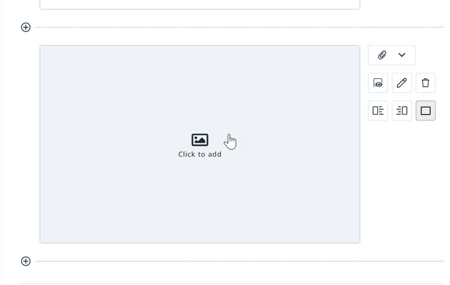
Both the Image and Video blocks allow you to upload an image or video directly from the DAM or from a local file.
Additional options on the right side of your block allow you to add text to the left or right side of your image or video.
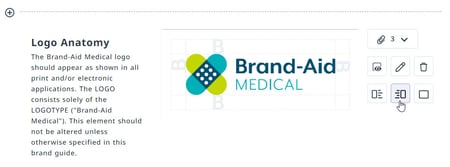
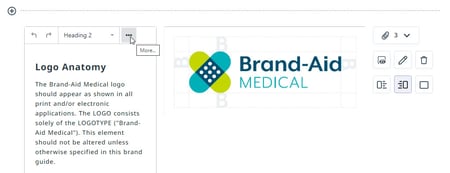
Click the actions menu at the top of the text box to reveal formatting options.
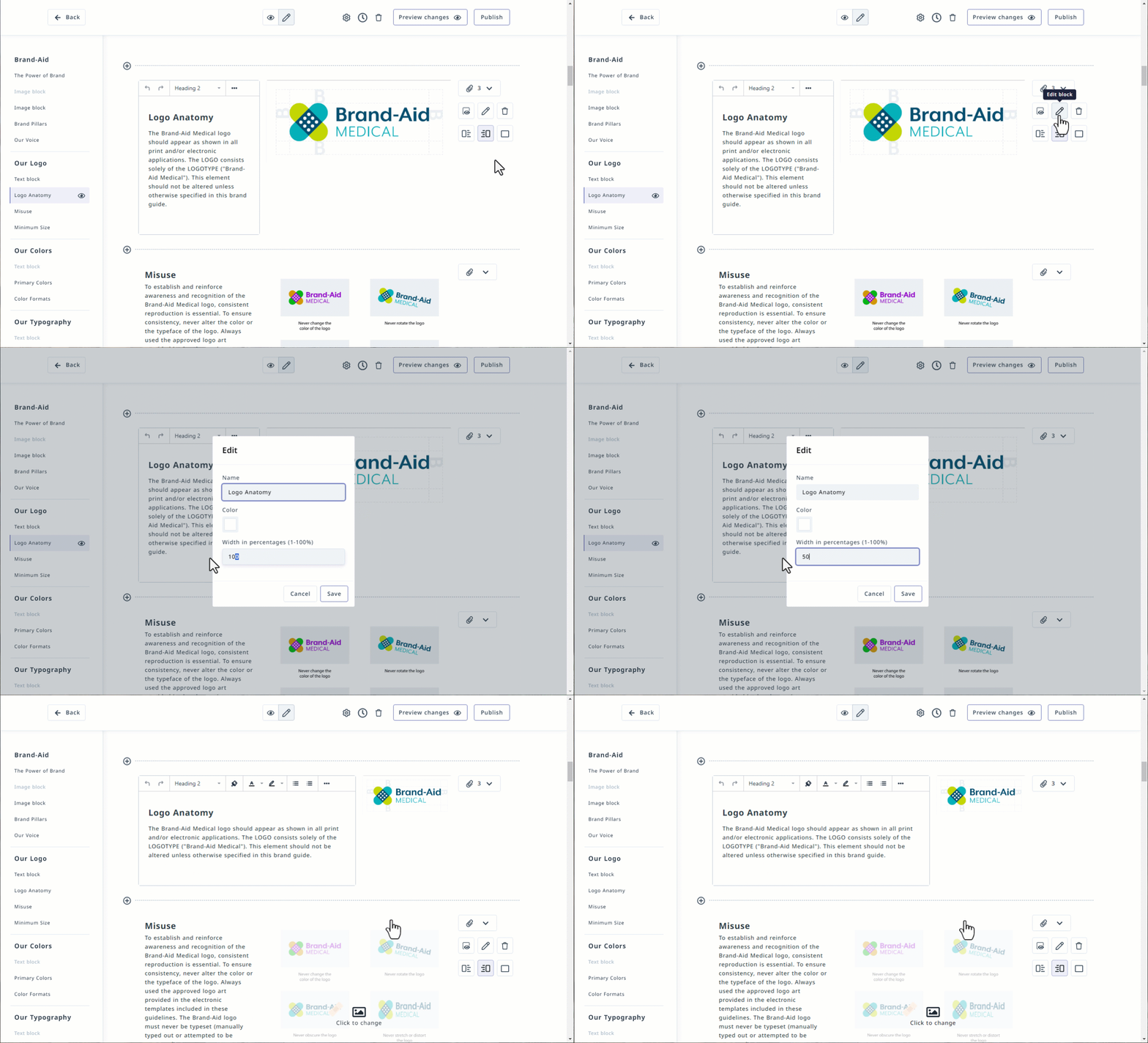
Adjust the size of your images within the Edit block modal. Input the width in percentages and click Save.
Colors
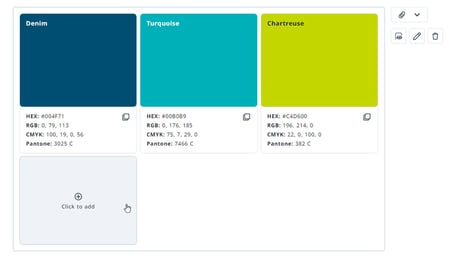
The colors block allows you to insert your brand colors for your users to easily view and copy. Click into the box to begin adding a color.
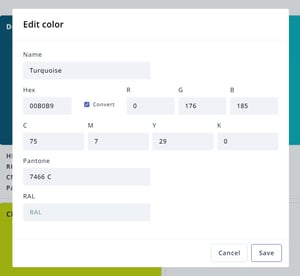
Create a name for your color and add the Hex number. The remaining information is optional. Click Add when complete.
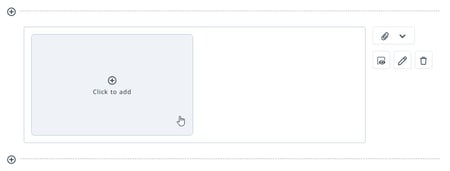
Multiple colors can be added to a block by selecting Click to add.
Typography
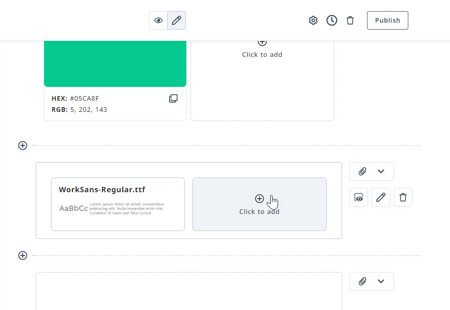
The typography block allows you to upload a font file. The file name will be reflected as the font name. Add multiple fonts to your block by selecting Click to add.
Gallery
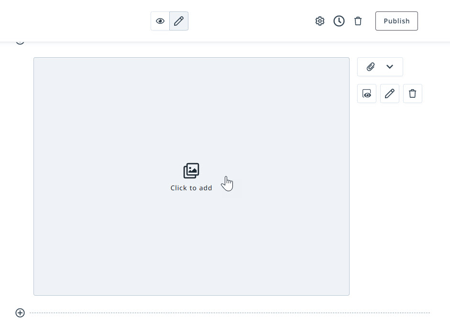
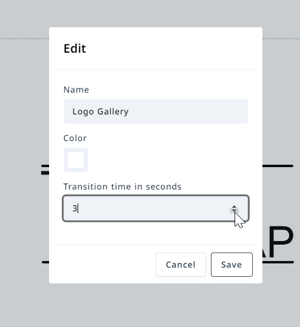
The Gallery block allows you to add multiple images that can be viewed in a slide-show fashion on a 3 second timer. Click to add your first image.
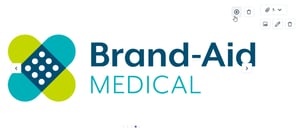
Continue adding images using the plus icon in the top right corner. Delete the current image using the trash icon.
Adjust the image transition time within the Edit block modal. Below Transition time in seconds, use the arrows to adjust the time or input the number of seconds desired.
Button
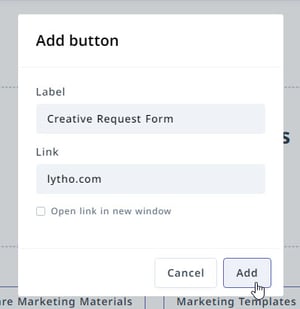
The button block allows you to add a linked button to your brand guide.
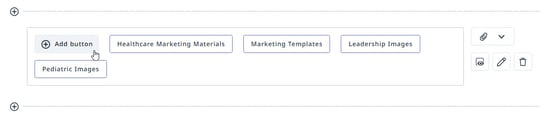
Create a label for your button, insert the link, and click Add when complete.