TABLE OF CONTENTS
• Zoom
• Download
• Help
TABLE OF CONTENTS
• Zoom
• Download
• Help
Providing Feedback
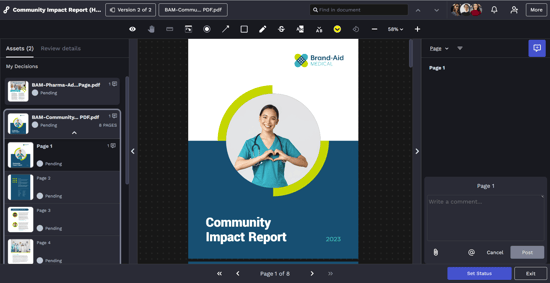
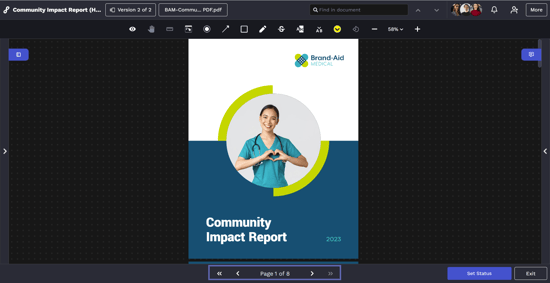
When reviewing an asset, easily provide feedback by marking up the assets using intuitive annotation tools in the toolbar. Each annotation will automatically be associated with a comment.
After using one of the annotation tools to create a markup, a comment box will automatically appear in the collaboration panel on the far right of the screen, allowing you to enter a comment related to your annotation on the asset. Annotations and comments will appear for all Reviewers in real time.
Click Post to save your markup.

Every annotation and its related comment will be numbered.
You can attach files related to your comment.
You can mention someone in your Lytho account to notify them of a message.
![]()
The General Comment Tool adds comments without an annotation.
![]()
The Choose Annotation Color Tool allows you to select the color of your annotation.
![]()
The Dot Tool identifies a specific point on the asset.
![]()
The Rectangle Tool draws a transparent rectangle to highlight an area of the asset.
![]()
The Arrow Tool draws an arrow pointing to a particular area of the asset.
![]()
The Freehand Tool allows freehand drawing on the asset.
![]()
The Highlight Tool highlights the text in the asset and populates that text in quotation marks into the comment field. You can edit or provide feedback on the text for the content producer as necessary.
![]()
The Insert Text Tool places a downward facing arrow in the chosen spot and populates the text Insert "" into the comment field. You can then type what you would like to be added between the given quotation marks.
![]()
The Strikethrough Tool adds a strikethrough line over the text in the asset and populates Remove and the text in quotation marks into the comment field. This allows you to ask the content producer to remove the text.
![]()
The Pan Tool allows you to grab the asset and move it around on the Review canvas.
![]()
The Ruler Tool allows you to measure assets on the Review canvas. For PDFs, measurements are available in points, inches, and centimeters, while all other file types are measured in pixels.
![]()
The Hide Annotation Tool allows you to temporarily hide all markups from the asset.
![]()
The Rotation Tool allows you to rotate the asset 90° counterclockwise.
![]()
Interactive Mode allows you to activate clickable hyperlinks within the asset for seamless navigation and enhanced testing. When this mode is turned on, the artboard will be outlined in green, and annotation tools will be disabled.
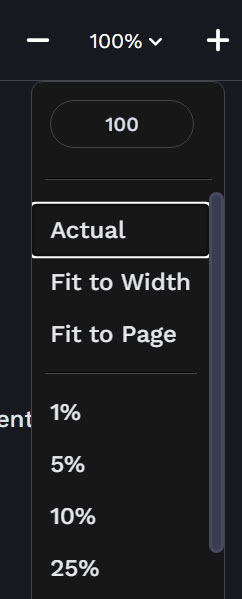
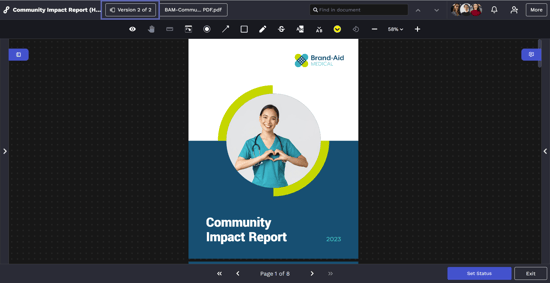
The Zoom Tool allows you to zoom in and out on the asset. You also have "Actual," "Fit to Width," "Fit to Page," and various zoom percentages for viewing the asset. The maximum zoom percentage level is based on your choice of browser.
Assets default to “Fit to Page,” which allows the Reviewer to see the full length and width of the asset.
Text Tools are only available if text can be identified in the asset. This includes common file formats like .pdf or .doc.

![]()
The Comment icon shows whether Reviewers have made comments on an asset and displays the total number of comments.
You can also navigate through the Proof by selecting the bottom navigation. The outer arrows will control moving from asset to asset. The inner arrows will control moving between pages within a multi-page asset. 
Approval Statuses
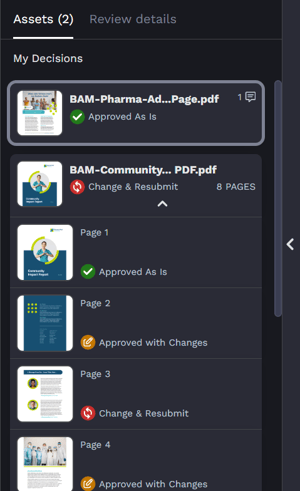
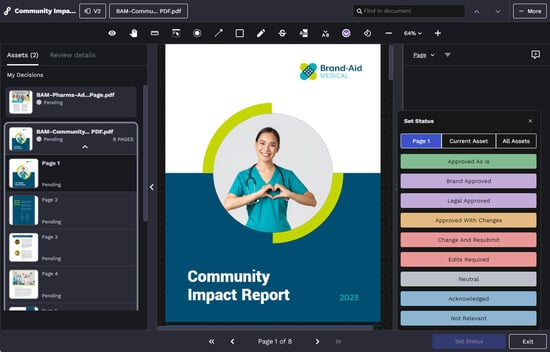
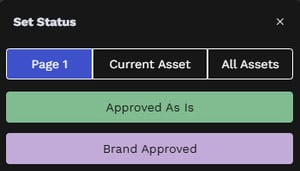
Before you can submit your Review and complete the Review process, an approval status is required for each page, such as Approved As Is or Change and Resubmit. You can set the approval status by selecting the drop down menu on the bottom right corner of the screen, below the collaboration panel.

After selecting a status, you can:
• Apply to Current Page: Updates only the page you are viewing in the current asset.
• Apply to Current Asset: Updates all pages in the current asset, not across the entire Review.
• Apply to All Assets: Updates all assets and pages across the entire Review.

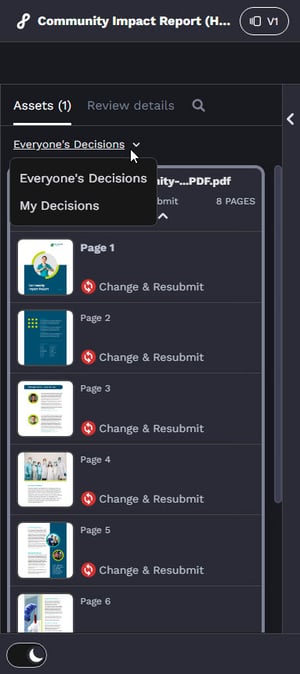
Once all Reviewers have submitted their decisions, anyone with access to the Review can view the aggregate status of the Review from the left-panel dropdown.

Final Submission
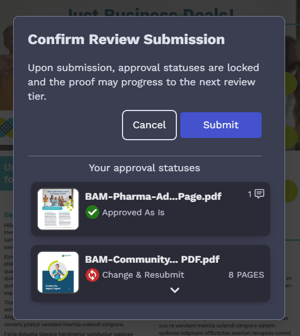
After applying an approval status to all assets in the proof, the Exit button will update to Submit so that you can submit your Review. To proceed, click Submit at the bottom right of the page.

Confirm your review submission by selecting Submit in the pop-up modal.

Members of the Proof will be notified via email when all invited Reviewers have submitted their Reviews.
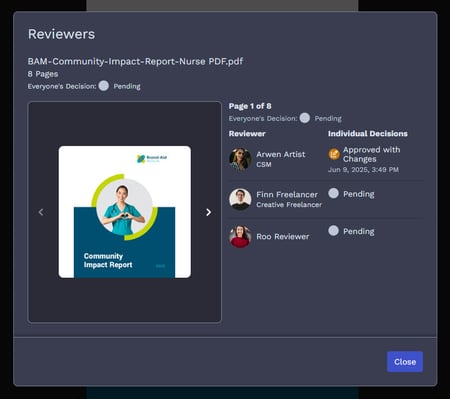
You can view all invited Reviewers on a Proof and the decision each person selected. This is available on all screen sizes.
On larger desktop screens, the Reviewers will appear in the top right navigation bar.

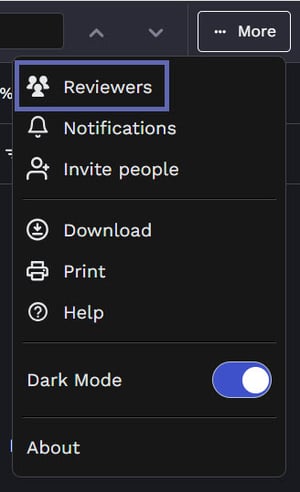
On smaller tablet or mobile screens, select the More button in the top right corner of the Review environment to select Reviewers.

From the Reviewers modal, you will see:
• Asset Details – Displays the asset name and total number of pages.
• Reviewer List – Shows each Reviewer’s name and job title (if provided in their Personal Settings).
• Individual Decisions – Displays each Reviewer’s selected approval status and the date/time of their decision.
• Everyone’s Decision – Once all Reviewers have submitted an approval status, an overall decision status will appear. While Reviews are still in progress, this area will show as Pending.

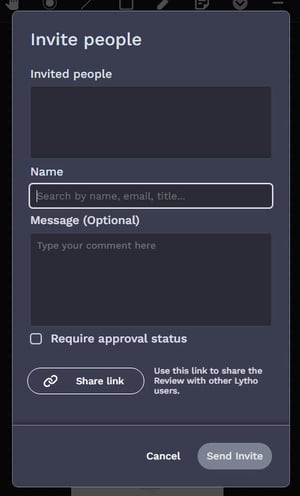
When enabled, Reviewers can share the Review with additional account members by sending a custom, private message that does not appear in the collaboration panel.

If a Reviewer believes someone's approval is required, they can add them as an essential Reviewer on the Review route. Proof members will receive a notification any time a new essential Reviewer is added to the Review route so they can continue to manage the Review's progress.

Reviewers can also share a direct link to the Review with other account members from the Share Review panel to collaborate on the Review.

Review Instructions
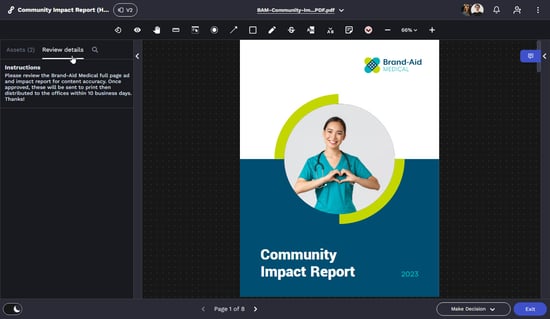
Review instructions appear when a review is first opened. They can always be found within the expandable left panel under the Review Details tab.
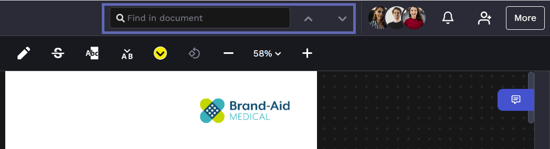
If the asset being reviewed includes a text layer, users can search for specific words or phrases within that asset. The search feature is located in the top navigation bar and is only available for files that recognize text. Searches are performed per asset and do not span across multiple files.

Proof Options
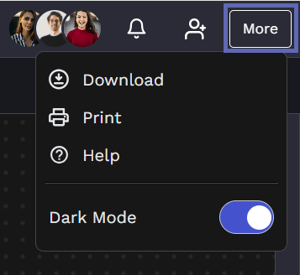
Select the More button in the top right corner of the Review environment to view available proof options.

Download gives you the option to select the original asset file(s) you wish to download. If multiple files are selected, they will be bundled into a single zip file. This feature can be turned off in Account Settings.
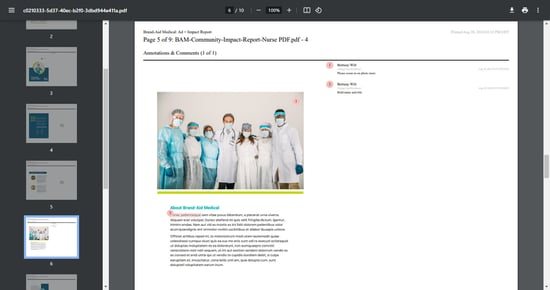
Print allows you to print the Proof to PDF. The generated PDF file will include a cover page including grouped approval statuses and images of the assets with annotations alongside Reviewer collaboration.
(Print PDF)
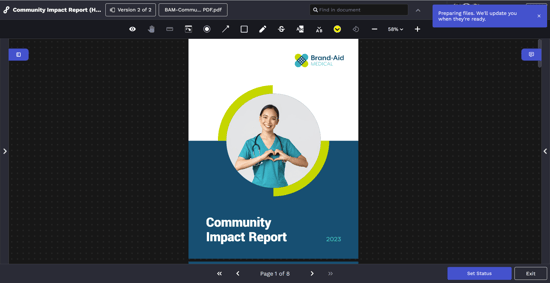
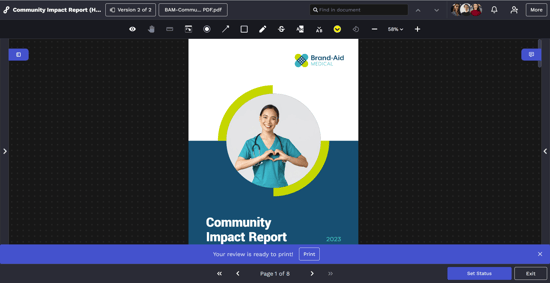
Banners will appear at the bottom of the Review environment indicating PDF preparation and readiness.
(PDF processing)
(PDF ready)
Help will take you to the Lytho Workflow Knowledge Base.
The Dark Mode toggle allows you to switch between light and dark themes to suit your visual comfort and lighting preferences. Once set, the system will remember your preference going forward.
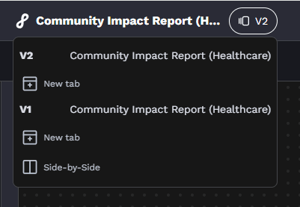
Lytho allows for the Proof uploader to submit sequential versions of the same document so that after implementing feedback in their design, these versions will be associated together and comparable in the Review environment.
When a review is versioned, you can access previous versions by selecting the versioning icon located to the right of the Review name. The Review’s version history will open. Select the version you’d like to reference to either compare side-by-side or open in a new tab of your browser.

The Mobile Experience
Lytho Reviews is fully browser-based and mobile-friendly. It does not require an app, plugins or extensions to view and approve assets.
Call Lytho Support
+1 (984) 330-6453
© 2026 Lytho, Inc. All rights reserved.