
AI Alt Text Generation automates one of the most critical yet time-consuming aspects of accessible content, ensuring every asset is compliant, contextual, and ready for use. Aligned with the latest WCAG 2.2 AA guidelines, this feature generates accurate, descriptive alt text that is stored directly on the asset as metadata, improving accessibility and usability across your DAM. By removing the need for manual entry, AI Alt Text Generation helps teams scale accessible content with confidence while maintaining consistency and compliance.
Features described in this article are not included in all subscription plans. Interested in expanding your feature set? Contact the Lytho Support Team for further assistance.
TABLE OF CONTENTS
• Using AI Alt Text Generation
Prerequisites
Before taking advantage of AI Alt Text Generation, the following should be confirmed:
-
Users have the appropriate Roles (DAM > Edit Assets) to save generated asset alt text.
How It Works
When an asset is uploaded, the AI model identifies key features like objects, people, colors, or places. It uses its training data (millions of images it’s learned from) to recognize these elements. Based on this analysis, Lytho recommends alt text that is a contextual match.
Lytho's AI model is pre-trained. We will not use customer data to further train the model.
Using AI Alt Text Generation
Single Asset Generation
Select an asset, from the Asset Manager or Waiting Room, and navigate to the GENERAL tab.
Within the Asset Manager, you can select the asset in two ways. The first option is by clicking the circle in the top-left corner of the image, which opens the asset menu in the bottom-right.
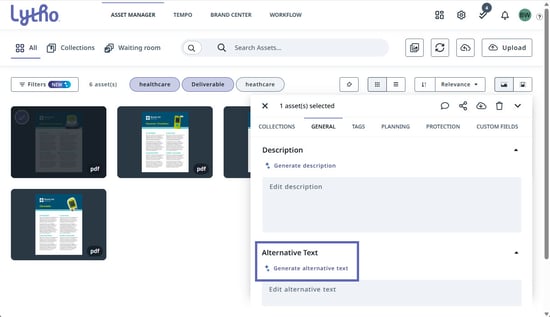
The second option is by clicking the center of the image to open a larger preview. Select All Details to access the GENERAL tab.
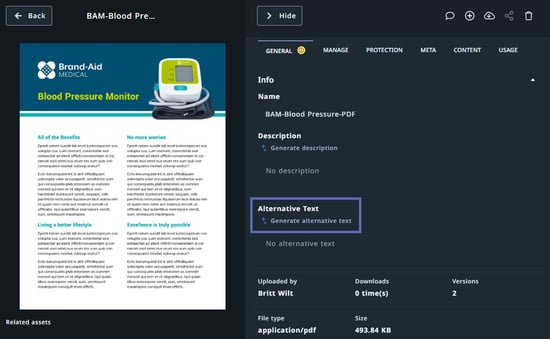
Within the GENERAL tab, click Generate alternative text. AI will automatically create alt text that aligns with WCAG AA 2.2 accessibility standards.
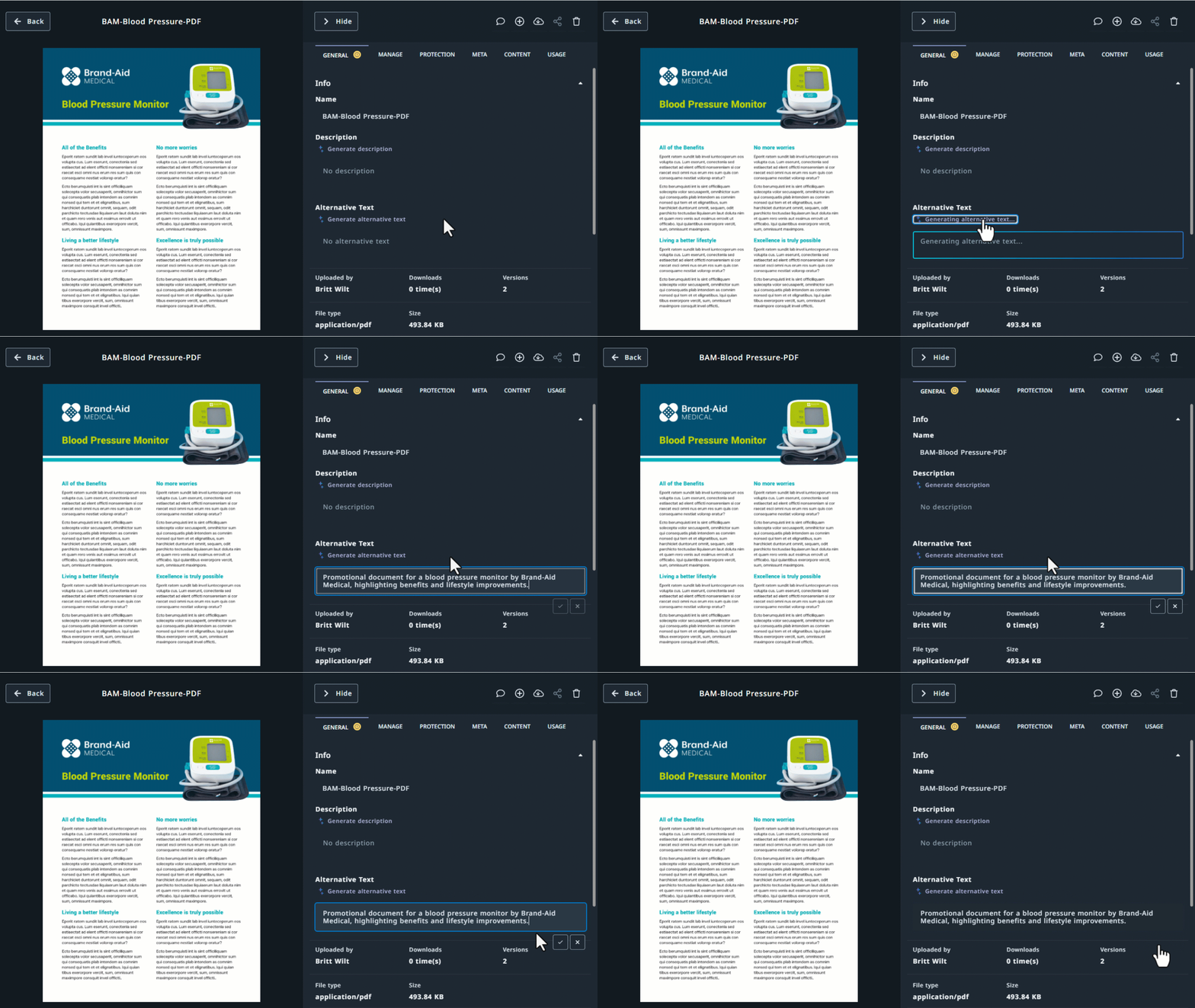
Once the alt text is generated, review it and either keep it as-is or edit it to better match your brand voice or provide additional context. Be sure to save your changes by selecting the checkmark icon.
Bulk Generation
To apply AI Alt Text Generation in bulk, start by selecting multiple assets within the Waiting Room or Asset Manager. Select the Generate Text icon from the Filter Menu.
Select Generate alt text to generate alt text, or Generate both to generate both alt text and descriptions for the selected assets.
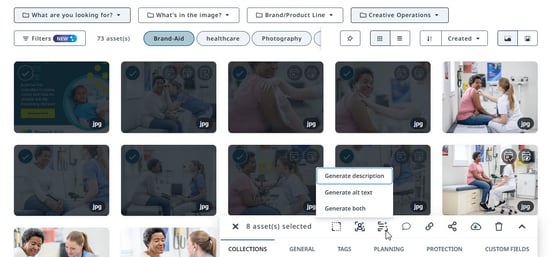
Note: Only one bulk generation job can run at a time.
While generation is in progress, you can leave the page and continue working in Asset Manager. You'll receive an in-app notification when the generation is complete.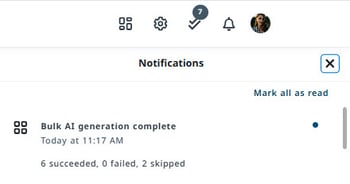
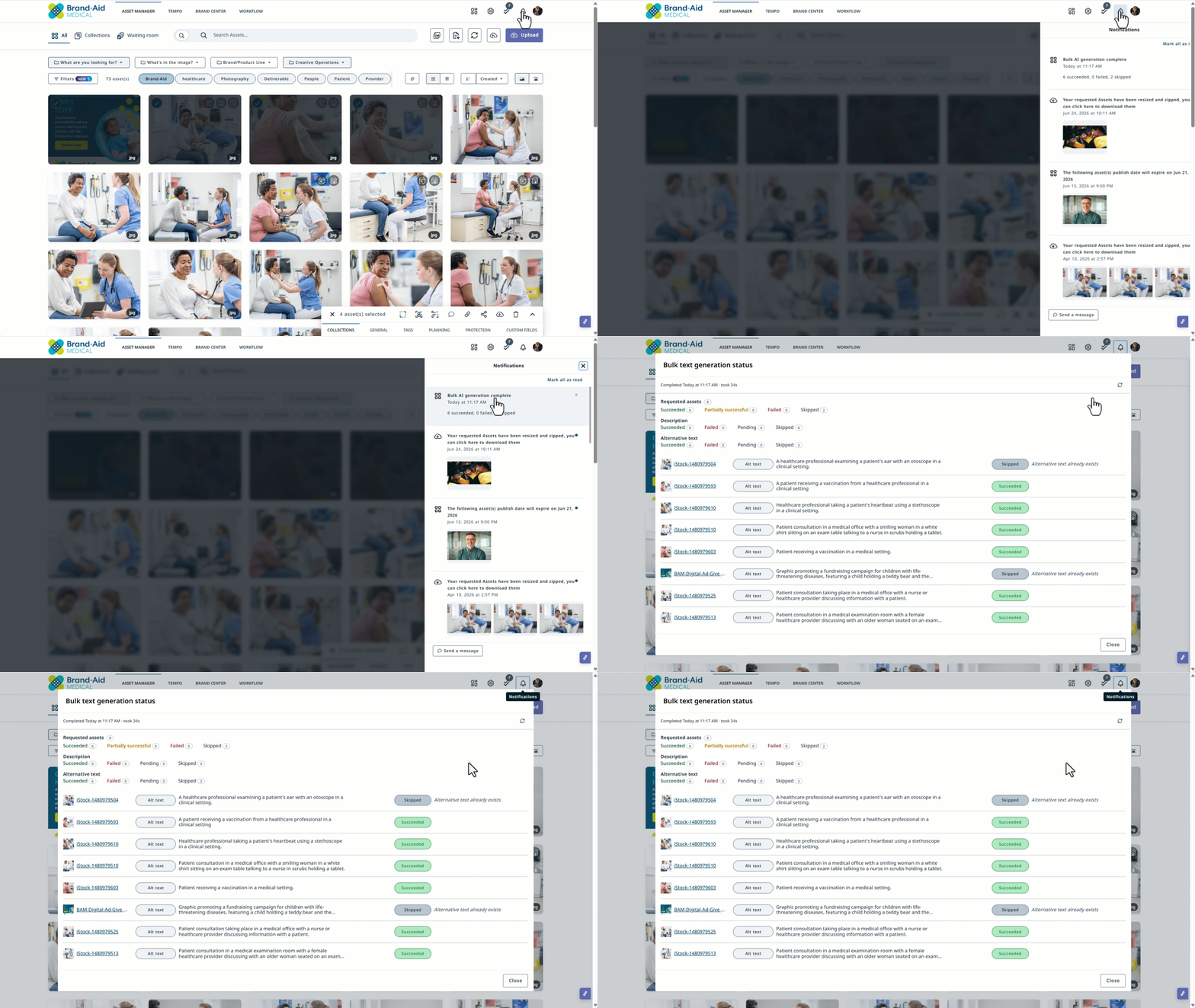
The notification provides an overview of the generation status. There are four possible statuses:
-
Succeeded – Alt text was successfully generated and added to the asset.
-
Failed – An error prevented alt text from being generated for the asset.
-
Pending – Alt text generation is still in progress.
-
Skipped – Alt text was not generated because the asset already has alt text or the file type is not supported.
Select the notification to view more detailed information, including the status for each asset and the newly generated alt text, where applicable.
File Types Supported
File types will impact the availability of AI Alt Text:
-
Supported: JPG, PNG, HEIC, webp, INDD, PDF, PPT
-
Not supported at this time: Audio, video and vector assets