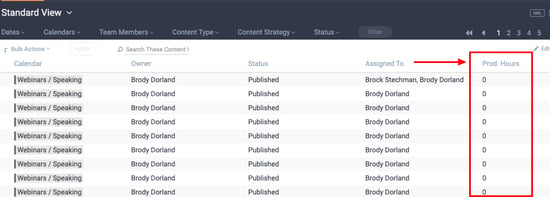
Would it be helpful to see the number of hours you and/or your team has spent on a content project? Or are you an agency that needs to calculate the total number of hours spent on multiple content projects for a specific client? Well, those are exactly the reasons why we've added new production hours tracking feature to DivvyHQ!
TABLE OF CONTENTS
• Logging Production Hours within Tasks
• Viewing Production Hour Totals
• Export to Calculate Totals for Multiple Content Items
Logging Production Hours within Tasks
To log hours, you first need to add a task. From the Sandbox, look for the Production schedule section in the Details Tab. If using a pre-defined workflow, tasks may already be present. If not, you can click the Add New button to add your first task.
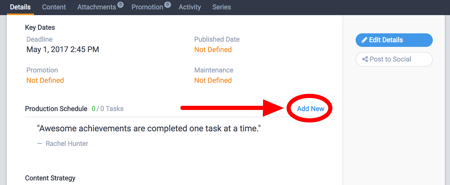
Once a task has been added, hours can be logged within its corresponding task edit panel or overlay. To edit an individual production task, locate the task either on your Divvy Dashboard (Production Tasks column), the Calendar Interface, or by clicking the Edit Details option located next to an individual task in the Sandbox.
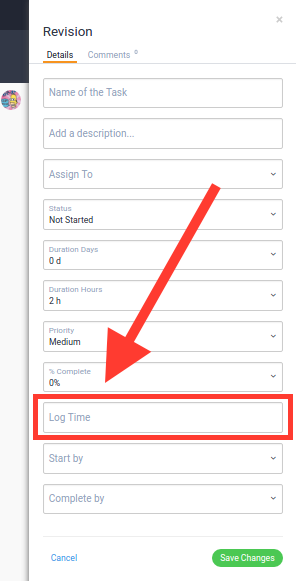
Within this panel (screen below) you can input your hours spent on the task within the Log Time field. Once those hours are updated and saved, those hours will be logged and attached to that content item's total logged hours.
Viewing Production Hour Totals
Once you and your team members start logging hours on content items, you will then be able to view the total hours logged on a per-content-item basis.
In the Content Interface, the Production Hours column is available within the In Progress, My Content and Archive tabs. To add this column to one of those tabs, click the Edit Columns button, check the box next to Prod. Hours, and click the green Apply button.
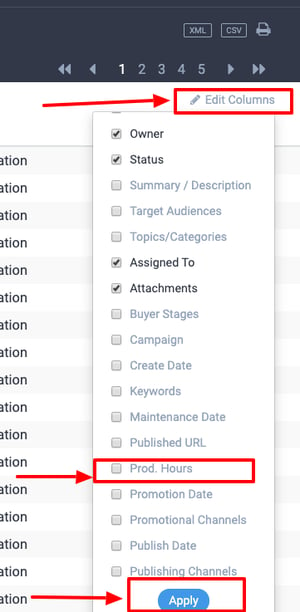
Once you have your Production Hours column in place you will be able to start viewing the total hours spent on each content item, and marvel at your team's efficiency!